


Fujitsu Image Scanner fi-8270 Review – PCMag

For office document management, a sheetfed and a flatbed tie the knot
I focus on printer and scanner technology and reviews. I have been writing about computer technology since well before the advent of the internet. I have authored or co-authored 20 books—including titles in the popular Bible, Secrets, and For Dummies series—on digital design and desktop publishing software applications. My published expertise in those areas includes Adobe Acrobat, Adobe Photoshop, and QuarkXPress, as well as prepress imaging technology. (Over my long career, though, I have covered many aspects of IT.)
The Fujitsu fi-8270 is a fast, accurate document scanner for midrange to high-volume loads. A combination of sheetfed and flatbed designs, it packs capable OCR and archiving features, too.
Fujitsu’s Image Scanner fi-8270 ($2,195) plays multiple roles in the company’s business scanner lineup—it’s an update to the fi-7260 that premiered in 2015 and an upgrade from the fi-8170 Color Duplex Document Scanner that won our Editors’ Choice honors in March of this year. It also plays dual roles in your office, as a middle- to high-volume sheetfed document scanner combined with a flatbed scanner. In other words, you get the best of both worlds, scanning multipage documents with a 100-sheet feeder, or putting photos or bound book or magazine pages on the flatbed as needed.
Like the sheetfed fi-8170, the fi-8270 is a fast and accurate scanner with a multitude of high-end features and a highly useful software bundle that manages scanning and document management. We liked most everything about this scanner, barring perhaps its steep price and costly software upgrades; some of its more-than-capable competitors are several hundred dollars cheaper. If price isn’t your company’s top concern, however, the Fujitsu fi-8270 will serve you and your busy enterprise office well.
The fi-8270 is the middle of three new high-volume combination sheetfed/flatbed scanners from Fujitsu. The fi-8250 offers most of the same features for less, but it’s a bit slower, and its daily duty cycle is a couple of thousand pages smaller. The fi-8290, on the other hand, is considerably faster than today’s model, with a duty cycle 3,000 pages higher.
Like the Raven Pro Max, another PCMag favorite that combines that company’s Raven Pro sheetfed document scanner with a flatbed attachment, the fi-8270 teams Fujitsu’s fi-8170 with a flatbed, as you can see in the image below. The combined devices measure 9.2 by 11.8 by 22.7 inches, and the unit weighs just over 19 pounds.
Those specs are similar to those of the Raven Pro Max. Another recent sheetfed/flatbed combo, the HP ScanJet Enterprise Flow N6600 fnw1, is much shorter and leaner, closer in size to lower-end models like Epson’s DS-1630 and PCMag’s Best of 2019 winner the Xerox Duplex Combo Scanner.
As it’s primarily an enterprise or a fleet scanner, you and your team will most likely access the fi-8270 via the company network, though many tasks such as setting up and executing basic scans or selecting workflow profiles can be performed from the device’s control panel. The latter consists of a few buttons and a navigation rocker for scrolling through options on a small display.
And of course, most scans from the flatbed—photos, book pages, fragile documents, or whatever—are usually handled from the control panel.
Multipage documents, whether single- or double-sided, are handled by a 100-page automatic document feeder (ADF), which is the standard for document scanners in this class. The Fujitsu’s recommended daily duty cycle is 10,000 scans, exceeded among the machines mentioned here only by the fi-8290 at 13,000. In any case, as I’ve noted before, reaching the daily limit with a 100-page ADF takes dedication—i.e., loading the feeder at least 100 times.
The Raven Pro Max’s daily max is 6,000 scans, and both the Epson and Xerox are rated at well under 5,000 scans daily. (They have 50- and 35-page ADFs, respectively.) The HP N6600’s duty cycle is 8,000 scans daily, though that company’s soon-to-be-reviewed ScanJet Pro 3600 offers a 60-page ADF and a 3,000-scan daily limit at a considerably lower price.
At least two of the fi-8270’s more direct competitors, the Raven Pro Max and the HP ScanJet N6600, come with Wi-Fi wireless and Wi-Fi Direct peer-to-peer networking, in addition to Gigabit Ethernet and USB 3.2 connections. This Fujitsu supports only USB and Ethernet, offering little or no support for scanning from handheld smartphones or tablets. The Raven also has an auxiliary USB port for scanning to flash drives and other USB storage devices.
As I said about the fi-8170 a few months ago, Fujitsu reps tell me the company’s high-end business scanners are usually deployed within existing document-management environments and workflows, whose users often already have a software solution in place. If you’re rolling out a new document-archiving system, however, the fi-8270’s bundled PaperStream programs and utilities (and available add-ons) should have everything you need.
The Fujitsu’s long list of apps and utilities includes PaperStream IP Driver (TWAIN x32/x64/ISIS), WIA Driver, Image Scanner Drivers for macOS and Linux, PaperStream Capture, PaperStream ClickScan, Software Operation Panel, Error Recovery Guide, ABBYY FineReader optical character recognition (OCR) for ScanSnap, and Scanner Central Admin. For enterprise-level document management, you can upgrade to PaperStream Capture Pro and PaperStream NX Manager.
Industry-standard TWAIN and ISIS drivers connect the scanner to the many third-party programs (including most Adobe and Microsoft Office apps) that support scanning into them directly. PaperStream Capture is an adroit front-end scanning utility. Fujitsu says PaperStream Capture Pro offers “an efficient yet easy way to convert paper documents into digital files for high-level data indexing and extraction” and charges $470 per seat for it.
Finally, PaperStream NX Manager is a built-in server solution designed to integrate centralized client-server document management systems easily.
Like its flatbed-free sibling the fi-8170, the Fujitsu fi-8270 is rated at a brisk 70 one-sided (simplex) pages per minute (ppm) and 140 two-sided (duplex) images per minute (ipm), where each page side is counted as an image. (This scanner’s humbler and grander siblings, the fi-8250 and fi-8290, are rated at 50ppm/100ipm and 90ppm/180ipm respectively.)
The Raven Pro Max is just a tick slower at 60ppm/120ipm. The HP N6600 is good for 50ppm/100ipm, and Epson’s DS-1630 and Xerox’s Duplex Combo trail at 25ppm/50ipm.
I tested the fi-8270 via a USB 3.2 connection to our testbed, an Intel Core i5 desktop running Windows 10 Pro and Fujitsu’s PaperStream ClickScan. First, I timed the fi-8270 and its software as it captured both our one-sided 25-sheet and two-sided 25-sheet (50 sides) text documents and converted them to and saved them as image PDF files.
As in all our tests, the Fujitsu performed very closely to its sheetfed sibling the fi-8170. At 72.2ppm and 143.7ipm, the fi-8270 is one of the fastest scanners we’ve seen recently, and certainly the fastest sheetfed/flatbed combo. It beat the Raven Pro Max by about 10ppm and 20ipm and the HP ScanJet N6600 by about 20ppm and 40ipm. The Epson DS-1630 and Xerox Combo finished way back.
Next, I clocked the fi-8270 as it scanned, converted, and saved our two-sided 25-page text document to the more useful searchable PDF format. Like the fi-8170, it captured and saved all 50 sides in an impressive 25 seconds. That beat the HP by 3 seconds and tied the Raven.
To round out my tests, I scanned several colorful business documents, drawings, and other graphics and photos on the flatbed, focusing not on speed but color accuracy and detail. Other than the unavoidable tedium of removing and replacing content on the scanner glass, the flatbed performed fine, reproducing colors accurately with no graininess or loss of detail.
As I’ve said more than once, OCR accuracy is at least as important as raw speed; the fastest scanner on the planet is worthless if you must spend too much time fixing conversion errors. The Fujitsu fi-8270 proved error-free down to 5 points in our Arial font test and 6 points with Times New Roman. That’s superb—and these days, fairly average for professional-grade scanners.
Like most Fujitsu scanners, the fi-8270 comes with everything you need to scan and archive most document types, ranging from business cards with contact information management to financial data such as receipts and invoices. It offers convenient workflow profiles with multiple scanning destinations and a wealth of high-end correction and enhancement features.
The only things that put us off about this scanner are its over-$2,000 list price (though we did find it for $500 to $600 less at some outlets) and the extra cost of Fujitsu’s most advanced document-management software. Even so, the fi-8270 is an excellent product that should, like most Fujitsu document scanners, hold up for years. If your budget allows it, the fi-8270 will not only get the job done, but it will do so elegantly and reliably.
The Fujitsu fi-8270 is a fast, accurate document scanner for midrange to high-volume loads. A combination of sheetfed and flatbed designs, it packs capable OCR and archiving features, too.
Sign up for Lab Report to get the latest reviews and top product advice delivered right to your inbox.
This newsletter may contain advertising, deals, or affiliate links. Subscribing to a newsletter indicates your consent to our Terms of Use and Privacy Policy. You may unsubscribe from the newsletters at any time.
Your subscription has been confirmed. Keep an eye on your inbox!
Advertisement
I focus on printer and scanner technology and reviews. I have been writing about computer technology since well before the advent of the internet. I have authored or co-authored 20 books—including titles in the popular Bible, Secrets, and For Dummies series—on digital design and desktop publishing software applications. My published expertise in those areas includes Adobe Acrobat, Adobe Photoshop, and QuarkXPress, as well as prepress imaging technology. (Over my long career, though, I have covered many aspects of IT.)
In addition to writing hundreds of articles for PCMag, over the years I have also written for many other computer and business publications, among them Computer Shopper, Digital Trends, MacUser, PC World, The Wirecutter, and Windows Magazine. I also served as the Printers and Scanners Expert at About.com (now Lifewire).
Read William’s full bio
PCMag.com is a leading authority on technology, delivering lab-based, independent reviews of the latest products and services. Our expert industry analysis and practical solutions help you make better buying decisions and get more from technology.
© 1996-2022 Ziff Davis. PCMag Digital Group
PCMag, PCMag.com and PC Magazine are among the federally registered trademarks of Ziff Davis and may not be used by third parties without explicit permission. The display of third-party trademarks and trade names on this site does not necessarily indicate any affiliation or the endorsement of PCMag. If you click an affiliate link and buy a product or service, we may be paid a fee by that merchant.
- Published in Uncategorized
signNow vs PandaDoc: Electronic signature software comparison – TechRepublic

Register for your free TechRepublic membership or if you are already a member, sign in using your preferred method below.
We recently updated our Terms and Conditions for TechRepublic Premium. By clicking continue, you agree to these updated terms.
Invalid email/username and password combination supplied.
An email has been sent to you with instructions on how to reset your password.
By registering, you agree to the Terms of Use and acknowledge the data practices outlined in the Privacy Policy.
You will also receive a complimentary subscription to TechRepublic’s News and Special Offers newsletter and the Top Story of the Day newsletter. You may unsubscribe from these newsletters at any time.
All fields are required. Username must be unique. Password must be a minimum of 6 characters and have any 3 of the 4 items: a number (0 through 9), a special character (such as !, $, #, %), an uppercase character (A through Z) or a lowercase (a through z) character (no spaces).
signNow vs PandaDoc: Electronic signature software comparison
Your email has been sent
PandaDoc and signNow are electronic signature solutions that support the management of electronic documents and contracts. Here’s how to choose which works best for you.
A safe and effective e-signature and document management process is vital for organizations to maintain the safety and efficiency of their operations. Electronic signature solutions like signNow and PandaDoc each provide features designed to simplify users’ electronic signature workflow process. Read on to learn more about these tools and their similar and unique features and capabilities.
SEE: Feature comparison: Time tracking software and systems (TechRepublic Premium)
Jump to:
signNow is an e-signature software solution that enables users to manage their document workflows. In addition to electronic signatures, the tool also provides additional features for businesses and organizations, like team collaboration capabilities, court-admissible audit trails, and template editing options.
PandaDoc is a document workflow automation software platform. It comes with features and capabilities to assist users in creating, managing and signing their digital documents. Furthermore, the software supports individual users and organizations with signature workflows, automated actions, customizable document creation features, and approval process solutions.
signNow provides customizable documents and templates for its users. Organizations can create their own templates of commonly used documents so that staff members can use them for fast and easy document completion. Users can generate the templates within the platform or import them from Word documents. This way, similar documents will not need to be reuploaded into signNow each time. Instead, a fresh copy will always exist, stored within the platform. Users can also create Document Group Templates. These are document templates merged into a group that can be reused as necessary and convenient for multiparty electronic signing.
PandaDoc enables users to choose between more than 750 document creation templates that exist on the platform. These preexisting templates exist for many common business purposes within various industries. Users may then customize the template they choose to suit their needs by adding variables within the document body. PandaDoc users can also create their own custom documents online and utilize them within the platform by integrating popular third-party tools like Microsoft Office, Hubspot, Google Drive and more.
signNow connects different members within an organization to work together through their collaboration features. Users can create teams of designated individuals, enabling them to easily share documents and templates through the team’s shared folder. Shared templates are also beneficial for collaborating with other staff, as members can upload these templates into the team’s shared folder for easy access. signNow also provides features and capabilities for organization leaders to manage their members’ accounts. Once leaders log in as admins or moderators in the system, they can create their organization, dedicate membership roles and manage their staff’s access to the organization within the platform.
PandaDoc helps team members collaborate on document-related work processes. Users can easily invite new members to their workspace by sending an invite link. Once another member becomes part of your workplace and team, you can edit documents simultaneously in real-time or reassign document ownership to them entirely. Authorized members can also create approval workflows to streamline collaboration in the system. The chat feature enables users to send private messages to each other for easy communication. The comment feature lets them share their thoughts directly on documents within the platform. This way, team members and stakeholders can collaborate on creating important documents. The system even provides a way to store contacts for easy access, sharing documents, or populating recipient information.
signNow offers more than 270 integrations with popular business apps, CRM and ERP systems, cloud storage platforms and more.
signNow helps users get more from their e-signing solution through built-in integrations with third-party tools. With the Salesforce integration, users can manage the life cycles of their contracts within Salesforce. The Microsoft Dynamics integration enables leaders to gain more data for team reporting and tracking team progress on tasks and projects. The BIM 360 connection accelerates construction projects with the signNow e-signature capabilities. The Box integration is helpful for document management, and the Dynamics 365 connection provides data for prefilling documents and updating records. Gmail users can quickly and easily send email attachments for signature. Finally, the signNow API allows users to manage their eSignature workflows based on the needs of their organization.
PandaDoc has native integrations and connectors with many other third-party solutions. It lets users connect their platform capabilities with productivity tools like Slack, Zoom, Microsoft Teams, Google Workspace and other solutions for easy collaboration on documents. CRM tools like monday work management, Omniscient, Salesmate and more can help update and streamline sales workflows. Storage integrations with tools like Microsoft OneDrive use automation to back up your documentation and enable easy document and template access. The tool also integrates with Canva for incorporating media and design features within documents, single sign-on for simplifying login management, various payment solutions for requesting and collecting electronic payments through sales documents, and many more interesting integration options. PandaDoc’s built-in integration features provide a wide range of capabilities to users. It also connects with Zapier Connectors and Integromat to enable users to create integrated workflows. The PandaDoc API may also be helpful for users who wish to enhance their document capabilities with automation.
signNow’s API is great for users who wish to create and customize eSignature workflows for their organization. Users can utilize the SignNow API to set up their documents with custom branding, templates and field options. They can then organize their documents into groups to send out to signers.
The signNow API also enables users to perform bulk signing, share files and generate signing links. Documents can be embedded for easy signing and sending on websites and apps, and users can collect payments by adding payment fields to their documents. The API is mobile-friendly, simplifying on-the-go e-signing processes.
Developers can use the PandaDoc API to build automated documentation and e-signature features. The PandaDoc API uses standard HTTP response codes, authentication and verbs, and resource-oriented URLs. Users can automate their documents workflow to create documents from templates and files, list and filter their documentation resources, and update and delete their documents or templates.
Through the PandaDoc API, users can also share documents via emails, links, embeds and downloads, link documents to CRMs and manage their folders. Using Webhooks and the PandaDoc API together allows users to subscribe to document events. The API enables users to access log details and manage their workspace members.
signNow and PandaDoc are two robust solutions for e-signature and document management. Considering your organization’s current needs and solutions is helpful when choosing the best software option for your organization. For example, an organization that uses e-signature documents for multiple purposes may benefit from signNow’s collaboration features which allow users to organize documentation among teams within shared folders. However, PandaDoc’s wide range of integration options may be best for an organization that already uses or plans to use one of those third-party solutions. By considering these aspects, you can get a better idea of which solution has features that would be more beneficial to your organization’s needs.
Strengthen your organization’s IT security defenses by keeping abreast of the latest cybersecurity news, solutions, and best practices.
signNow vs PandaDoc: Electronic signature software comparison
Your email has been sent
Your message has been sent
TechRepublic Premium content helps you solve your toughest IT issues and jump-start your career or next project.
The technologies could enable immersive experiences, accelerated AI automation and optimized technologist delivery in the next two to 10 years, according to the firm.
Are you an IT manager or executive trying to make the case for a new ERP vendor? Compare the top ERP software solutions with our list today.
Learn about the new features available with macOS 13 and how to download and install the latest version of Apple’s flagship operating system.
Get great deals on developer and Linux training courses, Microsoft Office licenses and more through these TechRepublic Academy offerings.
This comprehensive guide covers the use of services from multiple cloud vendors, including the benefits businesses gain and the challenges IT teams face when using multicloud.
Recruiting a Scrum Master with the right combination of technical expertise and experience will require a comprehensive screening process. This hiring kit provides a customizable framework your business can use to find, recruit and ultimately hire the right person for the job. This hiring kit from TechRepublic Premium includes a job description, sample interview questions …
Knowing the terminology associated with Web 3.0 is going to be vital to every IT administrator, developer, network engineer, manager and decision maker in business. This quick glossary will introduce and explain concepts and terms vital to understanding Web 3.0 and the technology that drives and supports it.
While the perfect color palette or the most sublime button shading or myriad of other design features play an important role in any product’s success, user interface design is not enough. Customer engagement and retention requires a strategic plan that attempts to measure, quantify and ultimately create a complete satisfying user experience on both an …
IIoT software assists manufacturers and other industrial operations with configuring, managing and monitoring connected devices. A good IoT solution requires capabilities ranging from designing and delivering connected products to collecting and analyzing system data once in the field. Each IIoT use case has its own diverse set of requirements, but there are key capabilities and …
- Published in Uncategorized
Why SwiftScan is my favorite document scanner [Awesome Apps] – Cult of Mac
By Joe White • 6:00 am, June 9, 2022 
SwiftScan (née Scanbot) is the perfect app for your paperless workflow. It makes capturing images of printed documents — like letters, contracts or reports — as simple as ABC. I’ve been using SwiftScan for years because of its ease-of-use and powerful feature set. Chief among these features is SwiftScan’s auto-capture.
Point SwiftScan at a piece of paper and it’ll automatically recognize the edges, focus the image, and capture a scan. Wait a second or two, and that scan will be transformed into a PDF. And if you’re a VIP member (more on this later), your PDF will also be searchable. Capturing multiple pages is incredibly easy. The whole process, from start to finish, is lightning-fast.
You might use SwiftScan to capture quick scans of receipts and bills, or – like me – digitize physical, printed letters as they land in your mailbox. We’re currently in the process of moving house, and SwiftScan has been invaluable for scanning forms and contracts to send to the legal team.
While scanning is incredibly easy, this isn’t even my favorite feature. Instead, what I love most about SwiftScan is how easy it is to process PDFs once you’ve captured them. This is made possible by a handful of buttons that appear along the bottom of the app’s interface.
First, Actions scours the scanned document for action-able text – like emails, phone numbers or URLs – and presents them in a menu for you to interact with. Second, Send lets you easily share your document or save it to the Photos app, iCloud Drive or Google Drive. And third, Edit lets you annotate, redact or add a note to your scanned document.
There’s also the ability to encrypt the PDF – a feature I really appreciate – or to have SwiftScan automatically upload your scans to a cloud service.
Next, let’s talk color optimization. After completing a scan, you have the option of choosing a filter – presets include grayscale, black and white, and magic color (a personal favorite). There are also the usual crop, rotate and page-delete options to deploy if needed.
We mentioned SwiftScan VIP earlier. Although this sets you back $7 each month, it adds support for a selection of power features that I find indispensable. The main one for me is text recognition – SwiftScan VIP will convert your PDFs into fully searchable documents. Electronic signatures, widgets and an ad-free experience also ship with the pro-level subscription.
While SwiftScan VIP is available for power users, the app is perfectly usable free of charge. Like we said, SwiftScan is available for iOS and iPadOS and won’t cost you a dime.
Price: Free
Available from: iOS and iPadOS App Store
Awesome Apps is a Cult of Mac series highlighting the best apps around. We will feature our favorite apps as well as new and notable ones. Apps are transformative, and these are the best.

- Published in Uncategorized
Best document management software of 2022 – TechRadar

- Published in Uncategorized
How to scan documents on Android – Android Police
Your phone is more than capable, and we’ve got the best app for the job
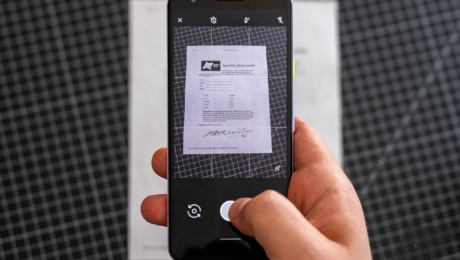
Scanning PDFs is one of the most annoying things many of us have to deal with in our personal and professional lives. Be it mortgage documents, a car loan, or other sensitive paperwork you need to preserve and share in a secure digital format, Adobe's ubiquitous PDF is a reality of dealing in docs in the modern world. Fortunately, you don't need a hardware scanner or big, bulky multifunction printer to digitize your paper documents. You only need a smartphone, a capable scanner app, and a few minutes. In this post, we'll break down what you need to do to get your docs converted to PDF using an Android phone.
There are plenty of ways you can generate PDFs in a pinch, and probably a hundred apps that claim to do it, but we'll be focusing on three good ways from three specific and well-known apps to generate PDFs from real-world documents: Google Drive, Adobe Scan, and Microsoft Office Lens.
Since each of the scanning apps has its own advantages, you can decide for yourself. In general, we recommend the Google Drive app if you only need to scan a document once or twice, since it's probably already installed on your phone and will save you time. However, our readers' favorite is Office Lens, and if you're dealing with scanning documents frequently, it's definitely your best choice
Although we've provided directions for Android devices, the process is much the same for the iPhone and iPad (iOS) apps. All of the apps in this explainer are available on both the Google Play Store and the App Store.
Of the four options here, Microsoft Office Lens is probably the best. Whether you're deeply integrated into Microsoft's Office suite and services or not, it's pretty fast and easy with a dead-simple interface and all the tools you probably need.
If you're scanning documents regularly from your phone, this is the app you should be using. Its perks include:
Of all the apps on this list, it's the easiest to use:
Left: Firing up the app for the first time. Center: Viewfinder. Right: Selecting images from the camera roll.
Just download the app, fire it up, grant it the required permissions, and you're off. Apart from an interstitial screen that you'll see the very first time you launch it (above left), you'll always be dumped straight to the viewfinder (above center), as with Adobe's app.
The viewfinder has all the tools you need immediately accessible with just a few taps. Along the bottom of the viewfinder, below the shutter, are different modes you can switch between based on what you're scanning. You'll probably just use the default "document" mode, but you can quickly switch to scanning business cards, photos, and whiteboards as well, each of which triggers its own preset modes. Above the shutter is your camera roll, offering easy access to images you've already captured with your camera app — just tap the images you'd like to add to a document and then tap the orange arrow that appears to the right of the shutter button (above right). You can also tap the photograph/gallery icon to get to a file picker if you need to manually navigate to images outside the camera roll.
When you've got the document lined up in the viewfinder, an orange-red rectangle indicates that it has a solid lock on its perspective and dimensions (which it can automatically crop and correct for). Just note that if you take photos on a grid-like background like you see pictured above, it might bug out a bit with that automatic cropping. There is a manual crop tool if that happens, though, and only very specific circumstances like that triggered any misbehavior for me.
Tweaking images before you turn them into a document is very easy.
When you've captured a page for your document, the workflow to tweak it is simple. If you need to add another page to your document, tap the "Add New" button, and you are taken back to the viewfinder to add another image — repeat that process as necessary with each page of the document.
When multiple images are loaded in, you can swipe between pages by scrolling left and right. There are filters if you prefer to convert your documents to black and white, etc., easily accessible with a quick swipe up.
Along the top of the screen, you have most of the other, less frequently used options. You can delete images in the current document, change their crop, rotate images, change their document type (which adjusts pre-set filters), make a text overlay, or draw on the document. With pinch-to-zoom working, you can even add a signature or annotate, if you need to.
Simple export process.
When you're done, tap "Done," and you get options for how to save your document. If you save it to your Android phone's gallery, that saves it as a JPEG image, but there are options to save a PDF file to your phone's storage as well. You can also send the image to OneDrive, PowerPoint, or OneNote, and documents can be imported to Microsoft Word for OCR if you prefer to convert them into text.
When the document has been saved in a specific format, you're dumped to a list of files you've created in the app, from there you can share or delete them via the three-dot menu on each. If I had to come up with one complaint about this app, it's that a share option could be integrated into the export screen before this one, but that's a very minor concern.
There are two other ways to create a PDF on your Android device that we've listed below. The Google Drive app is the most convenient choice for users in a pinch, and Adobe Scan is a good tool if you live in the Acrobat ecosystem, but if you scan documents regularly, we still think you owe it to yourself to try Microsoft Office Lens, it's easily the best document scanning solution we've used.
The reasons to use the Google Drive app for your PDF needs are:
Drive can automatically correct for perspective, too, so you don't need to worry too much if you can't snag the perfect shot, it will stretch and tweak things to compensate all on its own, though some content might end up a bit off-kilter.
If you need a different set of features than the Google Drive s app can provide, and you're willing to give up the deeper integration with G Suite's services, Adobe Scan is a robust alternative to old-school document scanners. Its advantages include:
Once you've scanned and organized all your documents, you may want to push things a bit further. If your photo gallery has fallen into disarray, you may want to take a few minutes to organize your Google Photos galleries.
Ryne was ostensibly a senior editor at Android Police, working at the site from 2017-2022. But really, he is just some verbose dude who digs on tech, loves Android, and hates anticompetitive practices. His only regret is that he didn’t buy a Nokia N9 in 2012.
- Published in Uncategorized
Best scanning software of 2022 – TechRadar

- Published in Uncategorized
Turn Your Smartphone Into a Pocket Scanner – The New York Times

Advertisement
Supported by
Tech Tip
Send any friend a story
As a subscriber, you have 10 gift articles to give each month. Anyone can read what you share.
Q. What do you need to scan documents with a smartphone?
A. Depending on the hardware you are using, you just need a smartphone (or tablet) with a working camera and an app to handle the scanning. Once you take a close-up photo of the paper you want to “scan,” the app converts the photo into a standard PDF file that you can use to file electronic receipts, store digitized documents or share by email.
If you have an Android smartphone and use Google Drive, you do not even need to download an additional app because Google Drive includes a document-scanning function. Open the Google Drive app and tap the Add (+) button on the bottom-right corner of the screen. Place the document you want to scan on a flat surface.
Tap the Scan camera icon and hold the phone or tablet over the document to get a clear picture. Once you have snapped the photo, use the Crop button to trim unnecessary background. If you are scanning a multipage document, tap the Add button to go on to the next page and repeat the process. If you are satisfied with the image, tap the Done check mark icon. To redo an unsatisfactory shot, tap the circular Refresh arrow. The resulting files are stored on Google Drive.
The Google Drive app for iOS has a camera function, but it does not create PDF scans of documents. However, Evernote has one free alternative for iOS users with its Scannable mobile app.
Scanbot is another free scanning app with versions for Android and iOS. Some scanning apps may charge a few dollars for a premium version, but include extra features like faxing or optical character recognition for converting images into editable text. Cam Scanner (for Android, iOS and Windows Phone) and TurboScan (for Android and iOS) are two such apps with free and premium versions available.
Advertisement
- Published in Uncategorized
A reporter tried the AI Instagram wants to use to verify age. Here's what it found – CNN

- Published in Uncategorized
6 Benefits of Using Contract Management Software in Remote Work – MUO – MakeUseOf

Contract management software provides a way for organizations to keep contracts organized and updated. Here are some benefits of using it.
The typical way of manual contract management is to sign a piece of paper and store it in a file cabinet. The manual process is slow and less efficient in monitoring and tracking remote employees.
With remote work becoming the new “normal” for many companies, it's never been more important to ensure that contracts and management processes run smoothly.
The good thing is that you can use contract management software to automate the entire contract lifecycle from creation through negotiation, signing, and renewal. There are many benefits of contract management software. Here are the top six.
One of the challenges with managing contracts manually is that it relies heavily on paper. The problem with physical documents is that they are more prone to damage and loss. While remote working risks data breaches, leaks, and hacking, contract management software eliminates these risks by allowing you to back up all your documents.
Contract management software allows you to store documents in the cloud, helping reduce the chances of them getting lost or damaged. The software also protects sensitive contract information from unauthorized access. The management tool includes contracts and agreements with different access levels, allowing you to dictate who can access, edit, and share particular documents.
For example, system administrators can configure permission-based rules, deciding who can access what information, whether they are physically located in the office or working remotely anywhere in the world. In addition, some programs protect documents using two-factor authentication and the latest encryption technologies.
Managing contracts manually is a slow and time-consuming process. It often involves face-to-face conversations, signing paper copies, mailing back and forth, scanning, and uploading the documents to share. Also, you'll need to repeat the entire process anytime you modify the contract.
With contract management software, there's little wait time to get contracts anywhere in the world. Software like Zapendo's Standard option allows you to leverage its e-signature to save hours on contracts and agreements.
For some companies, the delays start during contract creation. In this case, some software avail pre-approved templates to kickstart the draft, as well as standardized terms and clauses for specific use cases.
Remote workers without access to contract documents tend to request answers to questions answered in the contract. This can make it difficult for the in-house team to maintain control over their workload.
Contract management software stores all versions of a contract in an organized format. This way, remote workers can access the latest version and find answers to their questions. Time-consuming processes that can be automated include sign-offs, renewals, and unscheduled contract management actions.
Businesses within a remote working environment can consult and collaborate with team members working from home or working on the go while traveling.
Cloud-based contract management software gives authorized users real-time access to the information they need. It allows you to log in, pull up a contract, and collaborate with colleagues from anywhere in the world.
The software also has collaboration and communication tools like commenting and document chatting, making it easy to negotiate and update terms in real-time. These tools allow remote teams to input data, helping create an autonomous workforce in a controlled environment.
Issues like unapproved terms and missed obligations can put an organization at risk. Thankfully, contract management software can help reduce risks using pre-approved clauses and contract audit tools.
Using contract management software, the management team can verify that the results of each contract meet the expectations and that remote employees are adhering to the contract with the auditing tools.
The software allows you to track and audit every step of a contract milestone from anywhere, allowing you to hold all employees, including remote workers, accountable for their actions. This helps improve efficiency while protecting your company from non-compliance.
The tool also includes audit trails that let you view the entire contract history with just a few clicks. Authorized users can view which stage an agreement is at and its status (active, pending, expired, etc.), improving accountability and compliance.
You can also use the software to analyze the health of your business relationships. Contract management software includes reports that help you assess third parties' level of compliance with policies and regulations.
Better employee communication and allowing company-wide access to internal policies breed a sense of inclusion, enabling greater compliance. This is especially true for employees who work from home.
Working with remote teams increases the chances of missing deadlines and opportunities. Thankfully, contract management software can capture key contract dates and deliverables and send notifications to the responsible party.
Contract management software is one of the best tools to streamline remote work processes. For instance, you can configure the software's notifications tool to alert managers about contracts that should be canceled or renewed, keeping your financial interests safe.
Remote workers can be notified and start working on the assignments early, giving you more control over projects. You can also send notifications to all remote employees regarding policy changes or the need for policy review.
Trigger notifications are a crucial feature of contact management software and can alert you when an important part of a contract has been signed. Plus, some software let you set automatic recurring alarms that don't reset until the assigned team takes the expected action.
A common issue with using manual contract management is finding a misplaced contract. With contract management software, you don't have to rely on messy cabinets that make it difficult to search for crucial documents quickly.
Cloud-based CMS resolves the issues by providing a searchable, central repository. The centralized document hub includes search and filter tools to ensure team members, including remote workers, access critical information anytime, anywhere.
Storing all documents in a centralized, virtual repository increases contract visibility. It also gives you control over access to the contract documents and creates a single source of truth. Some companies allow team members to view ongoing obligations, deliverables, upcoming projects and renewal dates, and contract spending.
Managing contracts remotely isn't one of the most glamorous tasks in an organization. Monitoring and tracking remote employees is even more challenging when managing contracts manually.
Manual and paper-based techniques make the contract management process slower and less efficient. But with reliable contract management software, companies can easily handle contracts, even when working with remote teams.
Denis is a technology writer with a focus on security. The environmental science graduate started freelance writing in 2016, while still working as a loan officer. He mostly writes on topics related to cybersecurity threats, security vulnerabilities, and cloud security best practices. In his spare time, he enjoys reading, watching movies, and listening to music.
Join our newsletter for tech tips, reviews, free ebooks, and exclusive deals!
- Published in Uncategorized
How to turn on Bluetooth for Windows 10 – IT PRO

View all Business
View all Cloud
View all Hardware
View all Infrastructure
View all Security
View all Software
View all Technology
Getty Images
Over the years, wireless technology has continued to develop to the point it’s now very common to find, both in the home and the workplace. Cables are yesterday’s news, with everything from headphones to keyboards taking part in the wireless revolution.
Enter the magic of Bluetooth, the short-range wireless technology standard compatible with most devices and software, including Windows 10. It can be used for all kinds of things, from exchanging files or creating a network, to connecting smartphones and wireless headphones to your PC. In the workplace, you’ll probably have seen it used to connect keyboards or mice to your machine.
However, if you’ve got a new Bluetooth device and are itching to get it set up fast on your laptop or PC, there’s nothing worse than not being able to locate the setting in the operating system.
The good news is that it’s fairly straightforward to turn Bluetooth on or off in Windows 10.
First, select the start button and navigate to Settings. Here you will see a listing for Devices; click on this, and there will be an option for “Bluetooth & other devices”. Once you’ve opened this up, you’ll be able to switch the Bluetooth toggle on or off.
Alternatively, you can turn Bluetooth on or off from the Action Centre, which is located next to the time and date on your taskbar. Simply select the action centre, click on Bluetooth, and then that should turn on the function. Be aware, however, that if Bluetooth is turned off, it might appear as Not connected.
If you want to add this Bluetooth shortcut to your action centre, click on start, then Settings and find System. From here, look for Notifications & actions and then click on Quick actions. In this part of settings, you should be able to click on Add or remove quick actions and then turn on Bluetooth.
Once you’ve turned Bluetooth on, you can now pair a number of devices to your PC or laptop, including audio devices or keyboards.
First, turn on your Bluetooth audio device and make sure it’s discoverable. Check your device's instructions to see how to make it discoverable if you’re unsure how to.
On your PC, click the start menu, then Settings, and navigate to Devices. Here you can click on Bluetooth & other devices and then Add Bluetooth or other device, before finally clicking on Bluetooth.
Once this has been selected, you should be able to choose your device from the list on the screen and follow any additional instructions if they appear, before selecting Done.
Once you’ve done this, the good news is that your Bluetooth device and PC will normally automatically connect to each other anytime the two devices are in range of each other and Bluetooth is turned on. You can also use a handy shortcut (Win+K) to open up the Connect sidebar, allowing you to manually connect to (or disconnect from) previously paired devices.
If you want to pair a Bluetooth printer or scanner to your PC or laptop, the steps involved are slightly different to how you would normally pair a Bluetooth device to Windows 10.
First, turn on your Bluetooth printer or scanner and make it discoverable. Once again, if you’re unsure how to do this, check your device’s instructions or visit the manufacturer's website to learn how.
Then, navigate to start, then Settings, and find Devices. Here you will be able to select Printers & scanners, where you can then click on Add a printer or scanner. Let your device search for nearby printers, then choose the one you want to use and select Add device, making sure to confirm the connection on the printer or scanner if requested. Once you’ve topped up your printer with some ink or toner, you should be good to start using it and printing to your heart’s content.
Are you running into problems while using Bluetooth on Windows 10? Here’s a selection of troubleshooting steps you can try.
If you’ve set up a new device and still find that Bluetooth isn’t working, it’s a good idea to double check the product specifications to ensure that it does, in fact, have Bluetooth capabilities. Not all devices have Bluetooth functionality so it’s always worth checking this first.
Perhaps the most obvious thing to check is that Bluetooth is actually turned on. You'll be able to see whether it is on, and connected to a device, by simply opening up the Action Centre in the bottom right of the desktop window. If the Bluetooth tile is lit up blue, but you see “Not connected”, this means Bluetooth is switched on but isn’t currently paired to any devices. If it is greyed out, it means Bluetooth is switched off.
You can also check Bluetooth is turned on by going to settings, Devices, Bluetooth & other devices, and see if it’s turned on here. Additionally, if you are using a laptop with a physical Bluetooth switch on its body, then make sure this is turned on.
The problem could be with the device you’re trying to connect to your Windows PC or laptop. Make sure it’s turned on, charged, or has fresh batteries, and is physically located near the PC you want to connect to.
Once you’ve done this, try turning it off, waiting a few seconds, and then turning it on again. If you find that your device is unresponsive or slow to respond, then make sure it isn’t too close to any other USB devices that are plugged into a USB 3.0 port. Unshielded USB devices can occasionally interfere with Bluetooth connection.
The problem could be with your PC, instead of the device you want to connect to it. On the PC or laptop you want to connect to, make sure Airplane Mode is off. Select Start, Settings, Network & Internet, and then find Airplane mode. Make sure this is switched off. Alternatively, you will be able to find the Airplane Mode tile in the Action Centre.
You can also try turning Bluetooth on and off again, by locating it through the steps above before switching it off, waiting a few seconds, and then switching it on again.
Lastly, you can also try removing the device you’ve added and then add it again. Select start, Settings, Devices, and then Bluetooth & other devices. Here, select the device you’re experiencing issues with and select Remove device, before confirming by hitting Yes. To pair the device to your PC again, follow the steps above.
You might be surprised by the amount of devices that use Bluetooth nowadays. The good news is that many of them can be used in the workplace as well, and all can be connected using the above steps.
Wireless business keyboards and mice are a common sight in most offices, given the flexibility they provide. The great thing about Bluetooth keyboards and mice is that they will still work even if you are some distance away from your PC or laptop, which is useful if you're giving a presentation or you have an unusual setup, such as a standing desk.
Additionally, if you’re working at your desk, you won’t have to worry about untidy cable management, and many Bluetooth devices even allow for rapid switching between multiple paired devices.
Once again, no cables means you have a lot more flexibility with how you work. By connecting to your laptop or PC’s audio via Bluetooth, it means that you can get up and move around without having to touch your headphones.
The audio, like music or a video call with a colleague, will keep playing as long as you’re in range of your PC or laptop – and, depending on the model you're using, this can be quite some distance.
You can also connect these to your smartphone to make your commute a lot easier, or rock out in the kitchen if you’re working from home.
Gone are the days of having to physically connect your laptop or PC to a printer when you’re in desperate need of a document. Instead, you can pair it and print immediately, without having to get up from your chair.
This can be extremely useful if your printer is located outside of your home office, such as in another room or even a cupboard. It also makes it much easier to share a single printer among an entire household or office without having to run cables everywhere.
Although it's certainly possible to use Bluetooth with your printer, this functionality has largely been replaced by Wi-Fi printing, both at home and in the office.
Escape the ransomware maze
Conventional endpoint protection tools just aren’t the best defence anymore
Connectivity and collaboration
The future of work
Adding value to Microsoft Teams beyond voice connectivity
How AudioCodes can understand your broader business communication needs and fill in the gaps
Go ahead, dream big: The Dell EMC PowerVault ME4 platform
Delivering fast, affordable storage, optimised for the big plans of growing businesses
Digital transformation giant Orion Innovation hit by LockBit ransomware, hacker group claims
What is a 502 bad gateway and how do you fix it?
Lenovo ThinkPad X1 Carbon Gen 10 review: Quite simply the best compact business laptop
ITPro is part of Future plc, an international media group and leading digital publisher. Visit our corporate site www.futureplc.com
© Future Publishing Limited, Quay House, The Ambury, Bath BA1 1UA. All rights reserved. England and Wales company registration number 2008885
- Published in Uncategorized