


To avoid ending up with an ultimately disappointing software, here’s the list of SEO tools you can try out before spending money.
SEO tools are not cheap.
Unless you are an SEO agency or a really big company, which I’m guessing most of us are not, you really can’t afford to subscribe to the wrong one.
Good thing most of the SEO software developers are sensible people and have allowed us to try some of their tools before we make a commitment.
That is not to say that there are bad SEO tools out there and subscribing to them would be a terrible mistake.
No, it’s just that the market of SEO tools has reached that level of maturity where each of the big, seemingly similar players has developed subtle specialties and those specialties might be the best fit for certain SEO cases.
So the goal of a free trial is to find the tool that matches your current SEO goals.
Or, if there is no SEO budget whatsoever, the goal could be to exploit the free trial for as much free SEO as you possibly can and then bail.
That works, too.
Whatever the case, here are my top SEO tools you can try before you buy:
All-in-one SEO software with the largest backlink index on the market.
Ahrefs is one of the best SEO tools on the market.
It is packed choke-full of SEO features, enough to cover the entire cycle of website optimization.
It is also one of the few SEO tools relying on its own data to do website analysis.
Ahrefs uses its own SEO crawlers to scan the web.
It claims to have the biggest commercially available backlink database and one of the biggest keyword databases on the market.
While no SEO tool has a complete view of the web, Ahrefs is probably as close as one can get.
Over the years, Ahrefs kept adding more and more SEO features, to the point where it can be a little overwhelming for those just starting out with search optimization.
The tool is a much better fit for intermediate and advanced users, like SEO freelancers and SEO agencies.
Ahrefs does not offer a free SEO plan, but it offers a trial plan so cheap that it’s almost free.
For $7 you can try either the Lite or the Standard subscription plan for a week.
Credit card information is required, so beware of recurring payments.
Ahrefs offers four paid subscription plans: Lite, Standard, Advanced, and Agency, priced at $99, $179, $399, and $999 per month respectively.
A well-rounded SEO tool with an emphasis on smooth user experience.
SEMrush is a direct competitor of Ahrefs and the two tools are often used interchangeably or even in combination with each other.
But, if I had to pick a personal favorite, I’d give my vote to SEMrush as it strikes a better balance between comprehensiveness and user experience.
SEMrush is easier to navigate than Ahrefs and, in fact, than most SEO tools out there.
It’s got a lively color-coded interface, logical workflow and tab position, and professional-looking SEO reports with plenty of templates to choose from.
In that regard, if you have to share your results with a client or a teammate, then SEMrush will set you up with a nice presentation.
There also seems to be a consensus in the SEO community that SEMrush does a better job at keyword research.
So, if keyword research is your primary concern, then SEMrush might be a better way to go.
SEMrush offers 7-day free SEO plans on its Pro and Guru subscription plans, but no trial on its higher-end Business plan.
The plans are priced at $99, $199, and $399 per month respectively, but some features, like competitive analysis and additional users, will cost you extra, to the tune of $200 per month per additional user.
Easy-to-learn software for entry-level SEO professionals.
Another all-rounder, Moz Pro offers some of the most popular website optimization features, from site audit to keyword research, to rank tracking.
Compared to other tools, Moz Pro is a little easier to navigate than either Ahrefs or SEMrush, but also a little lighter on SEO analytics.
One thing that really stands out about Moz Pro is its use of smart metrics.
When you do keyword research, for example, each keyword is analyzed for difficulty, opportunity, potential, and importance.
Using so many metrics is a bit of an overkill, but still, a fun thing to play with.
Another example of a smart feature is crawler alert prioritization.
With Moz Pro, you can run automatic website crawls and receive alerts prioritized based on page importance and issue type.
A 30-day free SEO plan is available for the Medium subscription plan only, but it’s got all the same features that other plans have, so it’s a fair way to assess whether you’d want to pay for any other subscriptions.
Moz Pro offers four subscription plans: Standard, Medium, Large, and Premium, priced at $99, $179, $249, and $599 per month respectively.
Well-designed SEO tool with a knack for data visualization.
SE Ranking is another universal website analysis tool that wants to have it all, and thus offers the usual collection of website optimization features.
The way the features are stitched together feels a little haphazard, but the features themselves make a solid effort to visualize data – a real step-up from the usual spreadsheet-like format of other SEO tools on the market.
One thing I love most about SE Ranking is the layout of competitor research reports.
All you have to do to get a report is open the corresponding tool, state any domain, and get a full competitor profile within seconds.
The report is organized into over a dozen visual snapshots for such metrics as organic and paid traffic, ranking keywords, top pages, top competitors, and top PPC campaigns.
And with a click of a button, each snapshot turns into an in-depth report for any given metric.
SE Ranking offers a 14-day free SEO plan, but some of the features have limited functionality during the trial period.
Most tables containing data, for example, do not go beyond the first 10 rows – you can run some page by page audit, but nothing at scale.
SE Ranking has highly customizable subscription plans. The final price depends on:
The cheapest plan starts at just $18 per month, but, depending on your choice of features, it can go as high as $900 per month.
An SEO tool that leverages the data from multiple sources.
Raven Tools cherry-picks its data sources, powering its SEO insights with the data from Moz, Majestic, as well as some free analytics tools.
One Raven Tools feature unanimously praised by its users is its white label reporting.
Pick a template, add your logo, drag and drop what seems like a hundred different widgets, and choose whether you want to publish, download, or email the report to your clients.
You can also schedule the reports to be updated and delivered automatically every day, week, month, or quarter.
Another convenience of Raven Tools is its multiple integrations with third-party apps.
You can connect Raven Tools to your social media accounts and have it pull key social metrics.
You can also use MailChimp and Campaign Monitor integrations to manage email automation.
A fully-functional version of Raven Tools is available for free for seven days, no credit card information is required.
Raven Tools comes in four paid subscription plans: Start, Grow, Thrive, and Lead, at $109, $199, $299, and $479 per month respectively.
An SEO tool that’s both smart and a joy to look at.
SpyFu is one of my favorite tools in terms of layout, workflow logic, and overall aesthetics.
Every feature is right where you expect it to be and each page is eye candy.
My only strife with SpyFu is that some of their reports are a little form-over-function – beautiful to look at, but hard to read and extract insights.
Historically, SpyFu has been more of a PPC tool rather than an SEO tool, but it has now added enough of SEO features to be both.
From a technical perspective, SpyFu delivers top-notch competitive research, with in-depth metrics and a list of organic keywords that the competitor ranked for in the last 10 years.
SpyFu does not offer a conventional free trial, but it does offer an unconditional 30-day money-back guarantee.
Pick any plan, pay the initial fee, use it for up to 30 days, and then cancel via your account, email, live chat, phone, Facebook, or even Twitter – no questions asked.
Beyond that, you can create a free account and use the tool with limited functionality indefinitely.
SpyFu comes in three paid subscription plans: Basic, Professional, and Team, at $39, $78, and $199 per month respectively.
Specialized SEO tool with a focus on keyword research and position tracking.
Rank Tracker (full disclosure: I’m the founder of the company behind Rank Tracker) is one of the four tools within the SEO PowerSuite toolbox — each focusing on a specific area of website optimization.
The idea behind having a suite of tools instead of a single all-inclusive tool is that you can install all of them as a package or you can pick just one best tool for the area of SEO you are currently working on.
It saves you money, naturally, but also the navigation is less of a mess.
Rank Tracker offers enough keyword research tools to set you up for life. You can:
And if you end up with too many keywords to choose from, and you most likely will, then there are plenty of filtering and sorting options to help you identify the keywords with the promise of the most traffic.
Choose keywords by difficulty, organic traffic, cost per click, or use negative keywords to eliminate irrelevant results.
Rank Tracker offers a 7-day free trial of its paid plans when you launch the tool for the first time.
No credit card is required, and the trial reverts to a free plan once the week is out.
The free plan comes with limitations on storage and reporting, but the keyword research tool and the rank checking tool are on par with the paid plans.
Pro and Enterprise subscription plans are priced at a fraction of what is charged by larger SEO tools and will set you back $124 and $299 per year respectively.
Most tools on this list are comprehensive enough to cover a wide range of SEO use cases, and yet there are subtle differences that make each of them a slightly better fit for a particular SEO case.
Ultimately, there is no wrong choice, and it all comes down to your current SEO needs and, sometimes, your personal preference.
And if you are hopelessly undecided, then there is always that free trial period to help you make up your mind.
source

CCube Solutions, an independent UK SME, has been working in the NHS (secondary care) for over 20 years. We have recently attained BSi certifications for several ISO Standards – 9001, 14001, 2700, 27701, and BS 10008 – demonstrating our commitment to abide with established standards for protecting sensitive patient data held in our solutions in widespread use in the NHS. We help Trusts and Health Boards alike digitise legacy patient medical records and make this information available to clinicians and other health professionals at the point of care. It supports the Government’s drive that the NHS should be using technology to improve productivity, reduce costs and ultimately enhance patient care.
CCube Solutions specialises in providing Electronic Document and Content Management (EDRM) and Workflow solutions, based on the CCube software suite which holds and manages some 450 million documents containing over 2 billion pages for 32 million patients across 30+ NHS organisations around the UK. The CCube software suite currently holds and manages some 450 million documents containing over 52 billion pages for 32 million patients across 30 NHS organisations around the UK. Some of our NHS sites have been using the solution for over 19 years. Data on realisable benefits, from just three key sites, shows a collective saving of c.£35M over 10 years.
With a proven track record of project success and expertise working with the NHS for over 20 years, providing cost-effective and scalable solutions tailored to meet individual requirements, our software suite is used in some 30 NHS organisations around the UK. These include Aintree, Blackpool Teaching Hospitals, Aneurin Bevan University Health Board, North Bristol Trust, NHS Grampian, NHS Forth Valley, Papworth, St Helens & Knowsley, and NHS England. We aim to deliver measurable benefits, helping to bring paperless healthcare within 20 months.
CCube’s EDRM can also be embedded within other digital patient record systems, such as Cerner’s Millennium. At Milton Keynes University Hospital NHS Foundation Trust, 3,800 staff can access legacy patient records contained in the CCube system but view them from within Millennium. Clinicians now just press the EDRM tab within the Millennium menu and the EDRM viewer immediately displays CCube’s patient record.
Digital technologies are helping to:

business.com receives compensation from some of the companies listed on this page. Advertising Disclosure
Businesses are trading in their filing cabinets that are filled with files from who knows how long ago and using document scanners to scan and store their important documents. By using a document scanner for your business, you open up more space in your office, you can bolster the security of sensitive information, plus you have an electronic copy of critical documents that will not be irretrievably lost.
To help you choose the best document scanner for your business, there are some key questions you want to ask yourself that will help you effectively narrow your search.
The type of scanner you select should be able to easily scan the types of documents you need to digitize and render clear, crisp images. Are you scanning paper documents and receipts? Do you need to scan photo identification? Are you planning on scanning photographs?
The items you plan to scan should be the primary consideration when selecting a scanner. Most document scanners are capable of handling paper records, receipts and photo identification with ease.
To scan photographs, though, you’ll need a scanner designed specifically for images. Photo scanners offer higher resolution and enhanced color, preserving the appearance of photographs when rendered digitally.
If you plan to digitize paper archives, you will need a high-volume document scanner. High-end document scanners usually come with an automatic feeder that can digitize large amounts of paperwork without requiring close supervision, allowing you to create a digital archive of your files.
If you plan to scan documents occasionally, though, you’ll be better served with a less expensive model. Depending on your needs, there are portable document scanners that do the job, as well as smartphone applications that use your phone’s camera to digitally recreate documents. [Interested in learning more about document management software? Check out our reviews and best picks.]
Optical character recognition (OCR) allows your computer to easily read the text in your documents. OCR makes it easy to organize, search for and format your scanned documents. OCR is generally an industry-standard feature included in most modern document scanners, and it can be a huge timesaver for businesses.
It’s critical that the document scanner you’re considering purchasing is compatible with the operating system you use. Most document scanners work well with PC software, while fewer are available for Mac. If your business uses Mac OS, verify with the sales rep or the manufacturer that the document scanner you are considering is compatible. (Even if the scanner isn’t immediately compatible with Mac OS out of the box, you can install third-party drivers, however, these can sometimes reduce functionality and hamper performance.)
A contact image sensor is the less expensive and more compact option. However, it will struggle to adequately scan wrinkled paper or bound pages. Buying a charge-coupled device eliminates this problem, but the scanner will take up a substantial amount of space and cost far more.
If you’re only scanning documents, the standard 600 to 1,200 dpi will do. If you’re scanning photos, you’ll need at least 2,000 dpi. However, be prepared to pay substantially more for a higher-dpi scanner.
Like resolution, low color depth is OK if you’re only scanning documents. For photos, you should aim for at least 48-bit color depth.
Many modern features wirelessly connect to your devices; however, USB connectivity is still good to have as a backup option. Alternatively, if you want a printer that doesn’t connect wirelessly, you can choose USB connectivity over other types of connections.
As with any product, specifications are but one element of the overall solution. Without an abundance of positive customer reviews, good specs don’t mean much.
Editor’s note: Are you looking for a document management solution? Fill out the below questionnaire to have our vendor partners contact you about your needs.
smolaw11 / Getty Images
The state of the document-scanning art
I focus on printer and scanner technology and reviews. I have been writing about computer technology since well before the advent of the internet. I have authored or co-authored 20 books—including titles in the popular Bible, Secrets, and For Dummies series—on digital design and desktop publishing software applications. My published expertise in those areas includes Adobe Acrobat, Adobe Photoshop, and QuarkXPress, as well as prepress imaging technology. (Over my long career, though, I have covered many aspects of IT.)
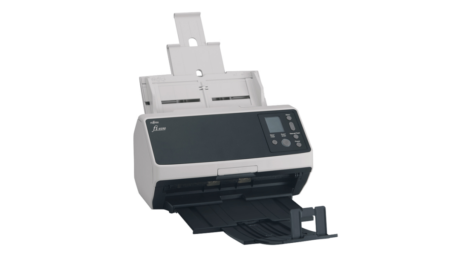
The Fujitsu fi-8170 is a fast and accurate desktop document scanner that's ideal as a front end for high-powered document archiving applications.
It’s been more than seven years since Fujitsu updated the flagship model in its series of midrange to high-volume sheetfed desktop document scanners. The fi-8170 ($1,195) reviewed here replaces the fi-7160 we tested back in February 2015. It’s superior to that machine in every way—speed, capacity, volume, and accuracy—and it even tops two of our favorites, last year’s Raven Pro Document Scanner and 2018’s Alaris S2060w.
Like all the Fujitsu models we’ve reviewed over the past few years, the fi-8170 is fast and accurate, and it comes with terrific software for scanning and saving your documents in a variety of popular formats. I’m not thrilled with the price (though it should come down relatively soon), but this is a first-class product that, if it’s like other Fujitsu scanners, should last on the market for a long time. Let’s get into the host of reasons to make the fi-8170 our latest Editors’ Choice winner for document scanning and archiving in busy offices and workgroups.
In document imaging and management technology, seven years is a very long shelf life, perhaps as many as two or three generations. As I said a moment ago, everything about this new model improves on its fi-7160 predecessor, and as you can see below, the fi-8170 looks nothing like the 2015 version.
Even so, the two scanners measure an identical 6.4 by 11.8 by 6.7 inches (HWD) with their trays closed, and the newer device is only half a pound heavier, at 9.8 pounds. Like comparable document scanners, the fi-8170 increases its depth more than threefold when its trays are open for business.
You don’t, however, need to extend the scanner’s trays all the way—the device is designed to work with the trays in various stages of extension. The scanner can be configured for smaller loads that eject onto the desktop, saving all kinds of space.
Most high-volume document scanners like this one, including but not limited to the Epson DS-970 and DS-870 workgroup scanners, the abovementioned Raven Pro and Alaris S2060w, and Canon’s ImageFormula DR-M260, are relatively close in size and girth. Like them, the fi-8170 supports basic scan setup and execution, as well as selecting predefined workflow profiles, from an onboard control panel. The latter consists of a series of buttons—Stop/Clear, Scan/Error, Menu, Manual Feed, and Power—anchored by a small rectangular display.
From here, you can manage individual scan jobs or select a profile that executes scans according to predefined instructions. A profile typically contains all aspects of a scan job including resolution; file format (image or searchable PDF, Word, Excel, plain text, and so on); and destination (an application, local drive, or one of several cloud sites). The profiles and other document management features rely on the bundled software, which we’ll talk more about in a moment.
Oddly, the Fujitsu’s connectivity is limited to USB (versions 2.0 and 3.x) and 10Mbps through 1,000Mbps Ethernet. In other words, you get no Wi-Fi or other wireless support, pretty much eliminating using the scanner with phones, tablets, or other handheld devices.
As for paper handling, the fi-8170’s automatic document feeder (ADF) holds up to 100 sheets varying in size from 2 by 2 inches to legal (8.5 by 14 inches), plus a long document mode that supports sheets up to 20 feet long. Its 10,000-scan daily duty cycle is the highest among the machines mentioned here so far, though it’s matched by two Visioneer scanners we tested in 2017, the Patriot H60 and Patriot H80, that boast 120-sheet ADFs.
The Epson DS-870 and DS-970 also have 100-sheet automatic document feeders, though their maximum daily duty cycles are 7,000 and 9,000 scans respectively. The Alaris S2060w and Canon DR-M260 each hold up to 80 sheets, with respective daily limits of 7,000 and 7,500 scans. The Raven Pro has a 100-sheet ADF, but its recommended daily limit is only 6,000 scans.
Fujitsu reps have told me more than once that their higher-end scanners like the fi-8170 operate under the assumption that the machine is likely to be deployed in an existing, high-end document management solution. But if not—if you’re preparing to roll out a new document archiving application—between Fujitsu’s bundled programs and available add-ons, you can create and maintain a basic solution, a sophisticated one, or anything in between.
The fi-8170 comes with a long list of apps and utilities: PaperStream IP Driver (Twain x32/x64/ISIS), WIA Driver, Image Scanner Driver for macOS, Image Scanner Driver for Linux, PaperStream Capture, PaperStream ClickScan, Software Operation Panel, Error Recovery Guide, ABBYY FineReader for ScanSnap, and Scanner Central Admin. For larger, enterprise-level document management, you can upgrade to PaperStream Capture Pro and PaperStream NX Manager.
The standard Twain and ISIS drivers let you use the scanner with the many third-party applications (such as Adobe Photoshop and Acrobat, Microsoft Word and Excel, and hundreds of others) that support scanning into them directly, as do the drivers for macOS and Linux. PaperStream Capture is a capable front-end scanning utility. If you need more, according to Fujitsu, the $470-per-seat upgrade to PaperStream Capture Pro “benefits organizations and departments that require an efficient yet easy way to convert paper documents into digital files for high-level data indexing and extraction,” improving records management processes.
Fujitsu’s PaperStream NX Manager provides built-in server software to easily integrate centralized client-server document management systems—basically, fleet management software on steroids.
Fujitsu rates the fi-8170 at 70 simplex (one-sided) pages per minute (ppm) and 140 two-sided (duplex) images per minute (ipm, where each page side is counted as an image). Of the machines mentioned here so far, only the Epson DS-970 tops that, at 85ppm and 170ipm respectively. Fujitsu’s older fi-7160 is rated at 60ppm and 120ipm, as are the Alaris S2060w, the Canon DR-M260, and the Raven Pro. The Epson DS-870, at 65ppm and 130ipm, lands in the middle.
To see for myself, I tested the scanner using PaperStream ClickScan over a USB connection to our Intel Core i5 testbed running Windows 10 Pro. First, I clocked the fi-8170 as it scanned our 25-page single-sided and double-sided (50 images) text documents, and I continued timing while the bundled ABBYY FineReader optical character recognition (OCR) software converted and saved the scanned text to an image PDF.
The fi-8170 scanned the document at 72.9ppm and 149ipm, slightly faster than its rated speeds. Only the DS-970 posted a faster score (78.9ppm and 176.2ipm), with the DS-870 not far behind at 69ppm and 139ipm. All the others managed between 55ppm and 65ppm for single-sided pages and 110ipm to 140ipm for double-sided docs.
Next, I clocked the Fujitsu as it scanned, converted, and saved the double-sided (50 images) document to searchable rather than image PDF, a much more versatile format used, among many things, to create document archiving systems. The new scanner performed the entire routine in 25 seconds, more than three times faster than its fi-7160 predecessor.
Completing this task in 25 seconds may sound fast, and it is, but it’s also about average for scanners at this level. The Epson DS-970 may be considerably quicker, but it was tested with an earlier version of our benchmark software using different documents, making comparisons potentially misleading. The DS-870 and Raven Pro did the same job in 24 seconds, while the Alaris S2060w took a leisurely 58 seconds.
Without question, these high-volume desktop document scanners are fast enough to handle all but the most formidable volume levels. If your office or workgroup requires more than 10,000 scans per day, the next step up is an industrial-strength sheetfed document scanner such as, say, Xerox’s $6,500 DocuMate 6710, with its duty cycle of 35,000 scans daily.
It doesn’t, however, take many errors to spoil the fastest scan job—the more time you or a team member must spend correcting conversion errors, the less point in using a scanner. Fortunately, most scanners nowadays—whether under-$100 manual-fed portables or mighty machines like the Xerox 6710—are highly accurate. And with error-free results at sizes down to 5 points in both our serif (Times New Roman) and sans-serif (Arial) font tests, the Fujitsu fi-8170 is one of the most accurate document scanners we’ve seen lately.
For the record, the Epson DS-870 and Raven Pro scanners tied the Fujitsu’s accuracy; the Canon DR-M260 managed 5 points error-free with Arial and 6 points with Times New Roman, while the Alaris turned in a highly respectable 6 points with both. (Again, direct comparisons with the Epson DS-970 weren’t practical.) It’s important to note that all these scores are better than acceptable.
Aside from its steep price and lack of support for Wi-Fi and mobile devices, there’s little to dislike about the Fujitsu fi-8170. There are several desktop document scanners with 100-sheet ADFs and impressive speed and OCR accuracy to choose from, and for the most part they all perform fine, with no paper jams or trying to feed more than one sheet at a time. It’s been seven years since the last major upgrade to this product line, and the fi-8170 is a good example of the progression of desktop document scanning technology over that time. It’s also our newest favorite high-volume document management solution.
The Fujitsu fi-8170 is a fast and accurate desktop document scanner that's ideal as a front end for high-powered document archiving applications.
Sign up for Lab Report to get the latest reviews and top product advice delivered right to your inbox.
This newsletter may contain advertising, deals, or affiliate links. Subscribing to a newsletter indicates your consent to our Terms of Use and Privacy Policy. You may unsubscribe from the newsletters at any time.
Your subscription has been confirmed. Keep an eye on your inbox!
Advertisement
I focus on printer and scanner technology and reviews. I have been writing about computer technology since well before the advent of the internet. I have authored or co-authored 20 books—including titles in the popular Bible, Secrets, and For Dummies series—on digital design and desktop publishing software applications. My published expertise in those areas includes Adobe Acrobat, Adobe Photoshop, and QuarkXPress, as well as prepress imaging technology. (Over my long career, though, I have covered many aspects of IT.)
In addition to writing hundreds of articles for PCMag, over the years I have also written for many other computer and business publications, among them Computer Shopper, Digital Trends, MacUser, PC World, The Wirecutter, and Windows Magazine. I also served as the Printers and Scanners Expert at About.com (now Lifewire).
Read William’s full bio
PCMag.com is a leading authority on technology, delivering lab-based, independent reviews of the latest products and services. Our expert industry analysis and practical solutions help you make better buying decisions and get more from technology.
© 1996-2022 Ziff Davis. PCMag Digital Group
PCMag, PCMag.com and PC Magazine are among the federally registered trademarks of Ziff Davis and may not be used by third parties without explicit permission. The display of third-party trademarks and trade names on this site does not necessarily indicate any affiliation or the endorsement of PCMag. If you click an affiliate link and buy a product or service, we may be paid a fee by that merchant.