


Sharing is caring!
Digitization is the process of transforming information into computer-readable (digital) format. With digitization, you can convert a document, an object, sound, or image into a computer-readable format. Digitizing thick documents gives you a softcopy version of the documents, enabling you to edit and share them with anyone you like.
You can digitize documents using;
Each of these methods has varying levels of efficiency in digitizing thick documents. In this article, we will discuss the three methods and recommend Shine Ultra Pro as the best document scanner to digitize thick documents. Read on to know how each method works.
You can digitize thick documents in various ways. Below, we’ll discuss three efficient methods to digitize these documents.
If you don’t have a physical scanner nearby and want to scan some documents urgently, your phone could do the magic. If you are an iOS user, you can scan thick documents using your iPhone or iPad.
This is made possible with the Notes app in just a few taps. Apply the steps below to scan your document on your iPhone:
#Advantages
#Disadvantages
You can obtain a digital scan of thick documents using a software tool like CamScanner. You’ll need to download and install this application on your phone if you don’t have one. With the help of your phone camera, CamScanner enables you to digitize documents like:
The application uses auto-enhancing and smart cropping features to maintain the clarity of the graphics and texts scanned on thick documents. It also provides clear and sharp digital document representations. You can get started with CamScanner in the following steps:
#Advantages
#Disadvantages
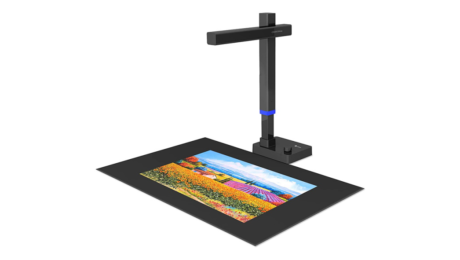
The best way to digitize thick documents is using CZUR Shine Ultra Pro. This scanning tool assures you of reliable performance at an affordable price coupled with an excellent scanning speed of one second per scan.
Shine Ultra Pro is more productive since it takes little time to scan large documents that would have taken more time with a regular scanner. The tool also assures you of photo quality since it has an ultra-high-definition (ultra HD) image sensor with 13-24MP.
It captures still images up to 5695 x 4272 pixels, assuring you of astounding clarity and remarkable details. The main features of Shine Ultra Pro include the following:
#Shine Ultra Pro Advantages:
#Shine Ultra Pro Disadvantages:
Digitizing thick documents helps you to save and share them in different formats. You can digitize thick documents using a mobile phone, software, or Shine Ultra Pro. If using an iPhone, you can digitize your documents using the Notes app.
The best software to help you digitize thick documents on your phone is CamScanner. This software tool helps generate clear and high-resolution images. The most recommended tool to scan multiple thick documents is Shine Ultra Pro.
Compared to using a camera or software, Shine Ultra Pro is of more advantage since it allows you to scan curled pages without losing clarity. Also, unlike software or camera, CZUR Shine Ultra Pro scanner takes only 1s to scan one page of the document.
Another advantage of this scanner compared to using a camera or software is that it uses an OCR function that enables you to convert scanned images into different formats like PDF, Word, Excel, Text, etc.
DUBLIN–(BUSINESS WIRE)–The “Global Document Management System Market Size By Offering, By Organization, By Deployment Mode, By Application, By Geographic Scope And Forecast” report has been added to ResearchAndMarkets.com’s offering.
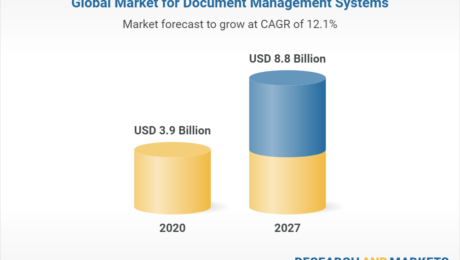
The global document management systems market was valued at $4,410.72 Million in 2019 and is projected to reach $9,368.93 Million by 2027, growing at a CAGR of 10.11% from 2020 to 2027.
Companies Mentioned
The Global Document Management System Market report provides a holistic evaluation of the market for the forecast period. The report comprises of various segments as well an analysis of the trends and factors that are playing a substantial role in the market. These factors; the market dynamics, involves the drivers, restraints, opportunities and challenges through which the impact of these factors in the market are outlined. The drivers and restraints are intrinsic factors whereas opportunities and challenges are extrinsic factors of the market. The Global Document Management System Market study provides an outlook on the development of market in terms of revenue throughout the prognosis period.
Growing digitalization in the healthcare industry is a key element that has boosted the growth of the document management system market. The document management system is used in the healthcare industry to track, manage and store documents, which results in the reduction of paper usage. A DMS is capable of storing records that can be created and modified by different users. It reduces human efforts and creates a paperless environment while reducing the number of errors. Furthermore, intense competition in the healthcare industry and an upward focus on patient privacy will drive the demand for the document management system market over the coming years. Additionally, the rising adoption of cloud-based document management services is further propelling the growth of the market.
This report provides an all-inclusive environment of the analysis for the Global Document Management System Market. The market estimates provided in the report are the result of in-depth secondary research, primary interviews and in-house expert reviews. These market estimates have been considered by studying the impact of various social, political and economic factors along with the current market dynamics affecting the Global Document Management System Market growth.
Along with the market overview, which comprises of the market dynamics the chapter includes a Porter’s Five Forces analysis which explains the five forces: namely buyers bargaining power, suppliers bargaining power, threat of new entrants, threat of substitutes, and degree of competition in the Global Document Management System Market. It explains the various participants, such as system integrators, intermediaries and end-users within the ecosystem of the market. The report also focuses on the competitive landscape of the Global Document Management System Market.
The market is segmented on the basis of Offering, Organization, Deployment Mode, Application, and Geography.
Key Topics Covered:
1 Introduction
2 Research Methodology
3 Executive Summary
3.1 Market Overview
3.2 Global Document Management Systems Market Geographical Analysis (Cagr %)
3.3 Global Document Management Systems Market, by Offering (Usd Million)
3.4 Global Document Management Systems Market, by Organization (Usd Million)
3.5 Global Document Management Systems Market, by Deployment Mode (Usd Million)
3.6 Global Document Management Systems Market, by Application (Usd Million)
3.7 Future Market Opportunities
3.8 Global Market Split
4 Market Outlook
4.1 Global Document Management Systems Market Outlook
4.2 Market Drivers
4.2.1 Increasing Global Demand from Healthcare Domain
4.2.2 Rising Adoption of Cloud Based Document Management Services
4.3 Market Restraints
4.3.1 Information Security and Privacy Concerns
4.3.2 Integration and Implementation Issues of Document Management Systems
4.4 Market Opportunities
4.4.1 Increasing Trend of Cloud Computing
4.4.2 Growing Trend Towards Digitization in Developing Countries
4.5 Covid-19 Impact Analysis on Document Management System Market
5 Market, by Offering
5.1 Overview
5.2 Services
5.3 Solutions
6 Market, by Organization
6.1 Overview
6.2 Smes
6.3 Large Enterprises
7 Market, by Deployment Mode
7.1 Overview
7.2 Cloud-Based
7.3 Hybrid
7.4 On-Premise
8 Market, by Application
8.1 Overview
8.2 Government
8.3 Healthcare
8.4 Industrial Manufacturing
8.5 Banking Financial Services, and Insurance (Bfsi)
8.6 Others
9 Market, by Geography
10 Competitive Landscape
10.1 Overview
10.2 Competitive Scenario
10.3 Company Market Ranking Analysis
source

A faithful scanning sidekick to tackle bottomless paper piles
I focus on printer and scanner technology and reviews. I have been writing about computer technology since well before the advent of the internet. I have authored or co-authored 20 books—including titles in the popular Bible, Secrets, and For Dummies series—on digital design and desktop publishing software applications. My published expertise in those areas includes Adobe Acrobat, Adobe Photoshop, and QuarkXPress, as well as prepress imaging technology. (Over my long career, though, I have covered many aspects of IT.)
Epson’s networkable DS-790WN scans high volumes of pages quickly and accurately, making it a great document management choice for small to midsize offices and workgroups.
Office document scanners haven’t changed much over the years. Case in point: The Epson DS-790WN Wireless Network Color Document Scanner ($749), a relatively modest upgrade to the DS-780N reviewed here in November 2017. The main difference is that while the older model offered only Ethernet, the DS-790WN adds wireless networking, working with iOS and Android mobile devices as well as PCs, and supporting walk-up scanning from its control panel. The Epson is fast, accurate, and supplied with highly capable scanning and document management software, making it an excellent choice for offices or workgroups with medium to heavy volume requirements. A three-year warranty cinches its win as an Editors’ Choice pick among networkable desktop document scanners.
The DS-970WN weighs 8.1 pounds and measures 6.6 by 11.6 by 6.5 inches (HWD) with its trays closed. It’ll never be that size in your office, however—like most document scanners, the Epson takes up about three times the space when open for business.
Similarly sized competitors include (among others) the Canon ImageFormula DR-M260 and the Panasonic KV-S1057C-MKII, along with the more recent Editors’ Choice recipients the Fujitsu fi-8170 and the Raven Pro Document Scanner. These machines vary an inch or two in depth or width and a pound or two in weight, but essentially have similar footprints. And most can be adjusted that, with smaller loads, pages can spill out onto your desk, saving the space occupied by pulling out the output tray.
Not only is the DS-970WN able to connect to several different types of devices (as we’ll discuss in a minute), but you can also configure the scanner and capture documents directly from its 4.3-inch touch-screen control panel. You can set up individual scan jobs on the go, or define up to 30 preconfigured workflow profiles containing all aspects of a job from resolution to file format (image PDF, searchable PDF, Microsoft Word or Excel, and so on) and destination (a local drive, an email attachment, FTP, one of several cloud sites, and more).
You can also configure several security options from here, such as user authentication to control who can use the scanner. In addition to 30 user-defined scan jobs or workflow profiles, the DS-790WN supports individual users with their own profiles. In other words, after you (as the admin) set up users, they can configure sets of profiles that initiate different scan jobs tailored to their needs. And you can customize profiles and set up users remotely over the internet.
In other words, anybody in the office can walk up to the scanner, insert a stack of documents, choose a preset from the control panel, press Scan, and walk away. The Epson and its accompanying software do the rest. You can, of course, also define and choose presets from the bundled software, which we’ll describe in the next section.
As for paper handling, the DS-790WN’s automatic document feeder (ADF) holds up to 100 sheets in sizes ranging from 2 by 2 inches up to legal (8.5 by 14 inches). In long mode, it scans documents up to 20 feet long. The device’s maximum daily duty cycle is 7,000 scans, which is a lot considering that you must completely fill the ADF 70 times to get there.
The scanner and software support numerous productivity and convenience features, such as the ability to capture and archive credit card, business card, and passport data.
Of the other scanners mentioned above, all match the Epson’s 100-sheet ADF except for the Canon’s 80-sheet feeder. As for their daily duty cycles, the DS-970WN’s 7,000 scans is about average or perhaps even a little low. The Raven Pro is good for an unspectacular 6,000 scans per day; the Panasonic for 8,000; and the Fujitsu for up to 10,000.
Connectivity options for the DS-790WN include Wi-Fi, Ethernet, and USB 3, a versatile configuration that supports most computing devices including handheld smartphones and tablets.
In addition to PCs and Macs, you can connect to the scanner wirelessly from most mobile devices. For a more secure connection, the Epson also supports Ethernet wired networking or connecting to a single PC via USB.
You can also scan to USB flash memory drives, as well as connecting to authentication devices to control which users can access the scanner.
Besides the Smart Panel app, bundled software includes Twain and ISIS drivers for use with the numerous third-party programs (such as Microsoft Word and Excel, Adobe Acrobat, and oh-so-many others) that support scanning directly into them. The company also throws in Epson Scan 2, a robust scanner interface, and Document Capture Pro, which is exactly what it sounds like—a document management app for archiving your organization’s information.
Epson rates the DS-790WN’s scanning speed at 45 one-sided pages per minute (ppm) or 90 two-sided images per minute (ipm, where each page side counts as an image). This is in the middle of the pack among office scanners. The Canon DR-M260 and Raven Pro are rated at 60ppm and 120ipm. The Panasonic is rated at 65ppm and 130ipm, while the Fujitsu fi-8170 is quickest at 70ppm and 140ipm.
I tested the DS-790WN using the Epson Scan 2 and Document Capture Pro programs over a USB connection to our usual Intel Core i5 testbed running Windows 10 Pro. For my first test, I clocked the Epson as it scanned our one-sided (simplex) 25-page and two-sided (duplex) 50-page text documents, converted the scanned text to image PDF format, and saved the file.
The scanner managed 46.2ppm for the single-sided and 91.7ipm for the double-sided test, slightly exceeding its ratings. The Fujitsu led the way at 72.9ppm and 149ipm, with the Raven Pro next at 61.2ppm and 124.4ipm.
When scanning our two-sided 25-page (50 sides) document to the more versatile searchable PDF format, the DS-790WN took 33 seconds, which is 19 seconds faster than its predecessor and about average among the machines mentioned here. The fi-8170 handled the same job in 25 seconds, with the Canon taking a sluggish 53 seconds.
As for optical character recognition (OCR) accuracy, I haven’t had to report poor performance from a scanner—any scanner, from inexpensive portables to high-volume desktop document managers—in several years. Reading both our serif (Times New Roman) and sans-serif (Arial) font pages error-free in sizes down to 6 points, the Epson proved both highly accurate and about average nowadays. In most office environments, zero mistakes with 6-point type is—since most documents don’t contain text nearly that small—basically perfect.
Of the scanners discussed here, only the Epson’s predecessor, the DS-780N, did noticeably worse, only reading Times New Roman down to 8 points. In most cases, you won’t need to make any corrections. You can’t beat that.
Compared to the other midrange to high-volume document scanners discussed here, the Epson DS-790WN’s only real shortcoming is that it’s slower. But its 100-sheet ADF and splendid OCR accuracy make it plenty fast enough for all but the heaviest enterprise applications, handling as much as a few thousand pages daily. It’s not exactly an impulse buy at $749, but it’s fairly priced—the Fujitsu fi-8170’s superior speed carries an $1,195 MSRP, and that scanner lacks Wi-Fi and mobile device support. The Epson is a great scanner for small to midsize workgroups and offices, and its three-year warranty tips the scale into Editors’ Choice territory.
Epson’s networkable DS-790WN scans high volumes of pages quickly and accurately, making it a great document management choice for small to midsize offices and workgroups.
Sign up for Lab Report to get the latest reviews and top product advice delivered right to your inbox.
This newsletter may contain advertising, deals, or affiliate links. Subscribing to a newsletter indicates your consent to our Terms of Use and Privacy Policy. You may unsubscribe from the newsletters at any time.
Your subscription has been confirmed. Keep an eye on your inbox!
Advertisement
I focus on printer and scanner technology and reviews. I have been writing about computer technology since well before the advent of the internet. I have authored or co-authored 20 books—including titles in the popular Bible, Secrets, and For Dummies series—on digital design and desktop publishing software applications. My published expertise in those areas includes Adobe Acrobat, Adobe Photoshop, and QuarkXPress, as well as prepress imaging technology. (Over my long career, though, I have covered many aspects of IT.)
In addition to writing hundreds of articles for PCMag, over the years I have also written for many other computer and business publications, among them Computer Shopper, Digital Trends, MacUser, PC World, The Wirecutter, and Windows Magazine. I also served as the Printers and Scanners Expert at About.com (now Lifewire).
source

Adobe Stock
In the digital age, government records management teams must balance both physical, paper copies of documents and electronic copies. Because of how much falls under the umbrella of records management, there are a variety of challenges that records administrators face when it comes to managing records.
The three most common problems that arise—making records more accessible, effectively safeguarding records and back-office modernization.
Finding an organizational system that makes documents easily and quickly accessible has always been one of the main challenges of managing records, whether paper or digital. Governments struggle with records management due in large part to the sheer volume of records they are responsible for creating, managing, and distributing. The challenge is also compounded by how long agencies must keep records on file.
For example, Lucy Adame-Clark, a county clerk doing records work in Bexar County, Texas, is in the middle of a two-year project to preserve, protect and digitize county records that date back to the Spanish colonial era. The oldest local document is a Spanish land grant that dates back to 1736.
Governments and other organizations looking for ways to simplify access to their systems without compromising security can do so in four ways:
Making records more accessible is more than just a best practice for government agencies—it may even have life-changing results for your citizens and businesses like it did for Karen Jackson, the Register of Deeds for Isabella County, Mich.
After her county digitized records, some of the local Native American tribes were able to locate their family names on the Native American rolls and could begin receiving per capita checks from the tribe. She owes the success of her digital records system to having OCR scanning capabilities, and the ability to perform “wildcard” searches of both scanned and written/typed data.
Once governments have records stored online, they must understand that the stewardship of those records is the responsibility of the entire organization.
A clerk cannot simply hand off the cybersecurity protocols to IT and assume that someone more tech-savvy will handle it. With the recent rise in cybersecurity threats, especially to local governments, every department head that is tasked with keeping records must have some level of understanding of the technology they’re using to store and encrypt data.
In a recent conversation with John Warren, the county clerk in Dallas County, Texas, he told me that cybersecurity is a major concern because local governments have been a popular target for perpetrators in recent years. He likened the challenge of maintaining records to a chess game.
“What are they going to do, and how are we going to respond?” Warren asked. “One of the most efficient ways is to use cloud services, and all the built-in security features they provide, to store records.
Cloud-based solutions like Amazon Web Services (AWS), Microsoft Azure and Google Cloud have made it easier for any government agency to adhere to the highest-level security protocols. That means data will be housed in secure data centers that are certified to the national standards published by the federal government. However, it’s still good practice to stay aligned with interoffice security protocols too.
Additionally, for data that falls into the category of controlled unclassified information, government agencies should look for vendors who have passed a SOC 2 audit, conducted by a reputable source. This will confirm that the vendor meets the applicable Trust Services Principles criteria with no exceptions listed. This thorough review will confirm that a software provider’s internal controls do not have a negative impact on the security, confidentiality and availability of the systems it uses to process users’ data.
Getting records online is only half the challenge. The other half is modernizing entire back-office systems and processes that are outdated and doing so with fewer resources. This means making records more accessible to the public, as I mentioned, but also making systems more approachable and navigable for employees.
The pandemic challenged a lot of the standard processes in two ways: working from home forced governments to develop new systems to let employees manage records remotely; and federal funding gave governments a blank check for innovation.
Pickens County, Ga., is a great example of modernizing back-office functionality. During the pandemic, they made well over $300,000 in revenue by making their records available online while their office was shut down. When it was announced that the county would receive CARES Act funding, they used that proof point to obtain additional funding to index their deeds and generate even more revenue.
If they hadn’t enabled online payments in the first place, none of this would have been possible. Online payments, modern search functionality, automated workflows for email notifications, legally binding eSignatures—all these modern features can help streamline records management processes.
By focusing initial efforts on tackling these three challenges, local governments can make the process of capturing, organizing and managing records far more efficient while also ensuring public records are more accessible to the public.
source