


Looking for a lost picture or document? Trying to make it easier to view and manage all your files? These tips will help you master File Explorer in Windows 10 and 11.
File Explorer in Windows has changed in look, feel, and functionality over the years, but its basic goal has always been to help you manage, view, and launch the array of documents, photos, and files nestled on your PC. Even if you’ve been using Windows for a long time, there are likely features in File Explorer that you may not know about or haven’t used in awhile. And that’s even more true in Windows 11, which has tweaked File Explorer visually and functionally.
Within File Explorer, you’ll see a Quick Access section that displays your most frequently used folders and recently used files. A dedicated Share button allows you to quickly share files from File Explorer. If you’re a OneDrive user, the file storage service is embedded inside File Explorer so you can easily store and sync files in the cloud. Read on for other useful features that will ease your use of file management in Windows.
The Quick Access section of File Explorer appears at the top of the left pane and displays your most frequently used folders as well as recent files. As this section is home to the folders you want to access most often, you can customize the Quick Access view to make it more useful.
To add any folder in File Explorer to Quick Access, right-click the folder and select Pin to Quick Access from the pop-up menu, or drag and drop the folder to the entry for Quick Access. Note that you can pin local folders as well as folders from network drives and those from integrated cloud services such as OneDrive or Dropbox.
To remove a folder from Quick Access, right-click it and select Unpin from Quick Access from the pop-up.
You can change the order of the folders in Quick Access. Simply drag and drop one folder higher or lower in the list until you’ve organized them all according to your preferences.
Quick Access even plays a role in the Windows taskbar. Right-click on the File Explorer icon on the taskbar, and your pinned folders for Quick Access appear in the menu.
Not crazy about Quick Access? You can stop it from automatically adding frequently used files and folders.
In Windows 10 File Explorer, click the View tab at the top to display the View ribbon. Click the Options icon just above its down arrow. In the Privacy section of the General tab, click the checkboxes for Show recently used files in Quick access and Show frequently used folders in Quick access to turn them off. Click OK.
In Windows 11 File Explorer, click the “See more” ellipsis icon at the top and select Options from the menu. In the Privacy section of the General tab, click the checkboxes for Show recently used files in Quick access and Show frequently used folders in Quick access to turn them off. Click OK.
Recently used files will disappear and no longer populate. Your frequently used folders will still appear but stop populating.
In Windows 10 and 11, File Explorer launches in Quick Access view by default. But you can tweak this and revert to the “This PC” view instead.
In Windows 10 File Explorer, click the View menu and then click the Options icon. From the Folder Options window, click the Open File Explorer to: setting and use the drop-down menu to change it from Quick Access to “This PC.” Click OK and then close File Explorer.
In Windows 11 File Explorer, click the “See more” ellipsis icon at the top and select Options from the menu. From the Folder Options window, click the Open File Explorer to: setting and use the drop-down menu to change it from Quick Access to “This PC.” Click OK and then close File Explorer.
The next time you open File Explorer, you’ll be taken to the “This PC” view.
Windows 10 File Explorer displays a ribbon full of commands for the Home, Share, and View categories. By default, you have to select each tab to display the ribbon, then click another part of the screen to make it disappear. This saves space since the ribbon appears only when you need it. However, you can tweak it so that you always see the commands available for the current ribbon.
At the very top of the File Explorer window, click the Customize Quick Access Toolbar arrow to the right of the folder icon. You’ll see a menu with different commands, including one to minimize the ribbon, which will likely sport a checkmark in front of it. Select this option to change the size of the ribbon. Maximizing the ribbon will display it in full view all the time. Minimizing the ribbon will restore the default functionality to disappear when not in use.
File extensions are a key way of revealing the types of files displayed in File Explorer. A file with a .DOCX extension is a Word document, a file with a .JPG extension is a JPEG image file, and a file with a .PDF extension is obviously an Adobe PDF file. But sometimes you may not want or need to see the extension, especially if you already know the file type based on its name or location. You can turn file extensions on or off easily enough.
In Windows 10 File Explorer, click the View tab at the top to display the View ribbon. Click the box next to File name extensions to turn on the checkmark and reveal the extensions. Click off the box to remove the checkmark and hide the extensions.
In Windows 11 File Explorer, click the View menu at the top and move your mouse to Show. Uncheck the option for File name extensions to turn them off. Check it again to turn them back on.
Windows offers a Libraries feature in which you can house your most often-used folders, but it doesn’t show your libraries by default. If you like to use libraries and want them easily accessible, you first have to set them to display in File Explorer.
To do this in Windows 10 File Explorer, click the View tab and then click the icon for Navigation pane. From the pop-up menu, click Show libraries. Your libraries then appear toward the bottom of the left pane in File Explorer.
In Windows 11 File Explorer, click the “See more” ellipsis icon and select Options. At the Options window, click the View tab. Scroll down the list of items and check the box for Show libraries. Click OK.
File Explorer offers various panes to display certain information about folders and files. You can turn those panes on or off to see or hide specific details.
To start, the Navigation pane on the left side of the window displays all the drives and folders on your PC, so you can easily explore them. You’ll likely want to leave this pane alone, but you can turn it off to create more space for the other pane.
In Windows 10 File Explorer, select the View tab in the ribbon, click the Navigation pane icon, and uncheck the checkmark next to Navigation pane. To re-enable the pane, click the icon and click the command back on again.
In Windows 11 File Explorer, select the View menu, move to Show, and uncheck the option for Navigation pane.
The Preview pane lets you see the contents of certain types of files without actually opening them, such as photos, Word documents, Excel spreadsheets, PDFs, and more. It’s a handy way to peek at a file without having to launch its associated program.
To enable the Preview pane in Windows 10 File Explorer, click the View tab and then click the option for Preview pane. Now select a particular file, such as an image or PDF, and you’ll see it previewed in the right pane of File Explorer.
In Windows 11 File Explorer, select the View menu, move to Show, and check the option for Preview pane.
The Details pane shows you key data on individual folders and files, such as the name, size, and last modified date. To turn enable this pane in Windows 10 File Explorer, click the Details pane option on the View tab of the ribbon. Note that you can display the Preview pane or the Details pane, but not both together.
In Windows 11 File Explorer, select the View menu, move to Show, and check the option for Details pane.
In Windows 10, File Explorer offers a Quick Access Toolbar at the top with icons for certain default commands and feature. You can easily customize this toolbar to add or remove icons. Right-click the down arrow at the end of the Quick Access Toolbar. Check any items you want to add; uncheck any you wish to remove. You can also reposition the toolbar below the ribbon.
Right-clicking a folder, file, or other object in File Explorer triggers a menu with a series of commands that vary depending on what you’ve selected. At a minimum, the menu features commands for Cut, Copy, Paste, Delete, Rename, Send to, Share, and Properties. Additional commands appear not just based on what you’ve selected but on what applications you’ve installed that hook into this menu. In Windows 10, just right-click on any object to see and use the menu.
The problem with the context menu is that the more applications you install, the more lengthy and cluttered the menu becomes. To deal with this problem in Windows 11, Microsoft pared down the menu to display certain core commands as icons and removed other commands considered extraneous. Seeing all the commands requires an extra step. Right-click on an object in Windows 11 File Explorer. The commands for Cut, Copy, Paste, Rename, Share, and Delete appear as icons at the top. To see all the commands, click the entry for Show more options.
In Windows 11, you can restore the classic context menu by default via a Registry hack. Open the Registry editor by click the Search icon and typing regedit. Open the result for Registry Editor.
Navigate to the following folder: HKEYCURRENTUSERSOFTWARECLASSESCLSID. Right-click the CLSID folder, select New and then Key. Name the new key {86ca1aa0-34aa-4e8b-a509-50c905bae2a2}.
Right-click the new key, select New and then Key. Name that new key InprocServer32. Double-click the key named Default inside the InprocServer32 key. Make sure the value data for the Default key is blank.
Restart Windows. Reopen File Explorer, right-click on an object, and you should see the full legacy context menu back in place. To revert back to the new menu, reopen the Registry Editor and delete the {86ca1aa0-34aa-4e8b-a509-50c905bae2a2} key you created.
In Windows 10 and 11, File Explorer includes built-in functionality to compress and decompress files as zip archives. To compress a series of files in Windows 10, select and then right-click the files. From the menu, move to Send to and select Compressed (zipped) folder. The zipped file is created, which you can then rename.
In Windows 11, select and right-click the files you wish to compress. From the menu, select the command for Compress to ZIP file. Rename the resulting zip file if you wish.
To decompress a zipped file in Windows 10 or 11, right-click the file and select Extract All. Confirm the destination and click the Extract button.
You can share a folder or file with a person or application of your choosing, another handy option that saves you time and effort.
In Windows 10, select the folder or file you wish to share. Click the Share tab at the top of the screen to display the Share ribbon. Click the Share icon to open a small window with a list of people and apps with which you can share that file. The number of apps listed will depend on the type of file and which apps are already installed. Select the person or app you want to receive that item.
In Windows 11, select the folder or file and click the Share icon on the top toolbar. Again, select the person or app with which you want to share the item.
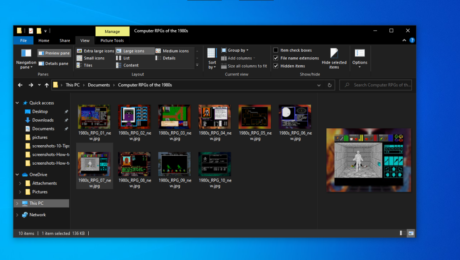
To some extent, you can tweak your photos and other image files in File Explorer. Right-click a photo in File Explorer and use the Rotate right or Rotate left commands to change the orientation of the image. To turn a photo into your Windows wallpaper, right-click on it and select Set as desktop background from the menu.
In Windows 10, you can also watch a slideshow of all the photos in a particular folder. After selecting an image, click the Picture Tools tab and then select Slide Show. Now just sit back and enjoy the show. Each image appears for about five seconds, but you can click an image to advance to the next one. Right-click on any image in the slideshow to display a pop-up menu that will let you change the speed, go forward or backward, pause the show, or exit.
For some reason, Microsoft removed the slide show feature in Windows 11 File Explorer. You’ll have to open the Photos app if you want to see a slide show of all your photos.
You can search for specific files by name, extension, or other attributes. You can also use the always popular “?” or “*” wildcard characters to seek out files with certain names or extensions. In File Explorer, click the folder that contains the file you wish to find. In the upper-right corner, you’ll see a search field with a magnifying-glass icon.
Let’s say you’re looking for a file with the word “business” in the title or contents. In the search field, type the word and then click the right arrow to run the search.
Now, let’s say you want to narrow the search to only Word documents with “business” as part of the filename. In the search field, type business.docx, and File Explorer returns only Word documents in the results.
You can further expand your search to include every file of a specific type. Maybe you’re looking for all PNG files. Simply type *.png in the search field.
You’ll notice the Search menu or ribbon contains a host of other ways to refine the search. You can search by kind, size, modified date, and other properties and even save your search to use it again in the future.
Sign up for Tips & Tricks newsletter for expert advice to get the most out of your technology.
This newsletter may contain advertising, deals, or affiliate links. Subscribing to a newsletter indicates your consent to our Terms of Use and Privacy Policy. You may unsubscribe from the newsletters at any time.
Your subscription has been confirmed. Keep an eye on your inbox!
Advertisement
I’ve been working for PCMag since early 2016 writing tutorials, how-to pieces, and other articles on consumer technology. Beyond PCMag, I’ve written news stories and tutorials for a variety of other websites and publications, including CNET, ZDNet, TechRepublic, Macworld, Popular Science, Time, Fortune, US News & World Report, and AARP Magazine. I spent seven years writing breaking news for CNET as one of the site’s East Coast reporters. I’ve also written two books for Wiley & Sons—Windows 8: Five Minutes at a Time and Teach Yourself Visually LinkedIn.
Read Lance’s full bio
PCMag.com is a leading authority on technology, delivering lab-based, independent reviews of the latest products and services. Our expert industry analysis and practical solutions help you make better buying decisions and get more from technology.
© 1996-2022 Ziff Davis. PCMag Digital Group
PCMag, PCMag.com and PC Magazine are among the federally registered trademarks of Ziff Davis and may not be used by third parties without explicit permission. The display of third-party trademarks and trade names on this site does not necessarily indicate any affiliation or the endorsement of PCMag. If you click an affiliate link and buy a product or service, we may be paid a fee by that merchant.

Real-time visibility provider FourKites plans to shut down ocean shipping document management and tracking solution Haven by the end of this year, according to multiple sources familiar with the matter. Founder and CEO Mathew Elenjickal says Haven has simply become part of a broader platform.
Separately, the company has conducted a number of layoffs, Elenjickal confirmed.
In April 2021, FourKites acquired Haven to integrate its document management capabilities into a new visibility product. That product is called Dynamic Ocean, and would give its global shippers one platform to manage their supply chain.
According to an email sent by Elenjickal and acquired by FreightWaves, the board of the Chicago-based company has requested a full “product portfolio review to align with market realities.”
“Our analysis has revealed that Haven modules are one of our highly unprofitable product lines,” Elenjickal said in the email. “It is costing us almost $50/container to serve the documentation module and we are not seeing willingness by BCO’s to pay anywhere close to cover the costs. …With that said, we are sunsetting the Haven booking and documentation modules this year.”
In a response from FourKites on the matter, Elenjickal said, “the [Haven] modules are highly customized to those customers, and are simply not scalable or viewed as relevant to the market as a whole.
“The real value in acquisitions comes in having one singular global platform for all providers and all data. If you don’t integrate those systems, you wind up with a bunch of siloed platforms that don’t deliver much value for the customer. The real value for our customers comes from having one cohesive, user-friendly solution, so we’re very strategic about how we acquire and integrate. As is industry best practice, we sunset old acquired platforms after that integration is successful.”
In an interview with FreightWaves in April 2021 after the announcement of the Haven acquisition, Elenjickal described Haven as the technology piece the company needed to build “an end-to-end platform [that] seamlessly manages ocean transportation.”
“Starting with supporting the booking process, it will help you communicate with steamship lines, create the bookings and change the bookings. It has a robust documentation platform and you can define the rules by the country of origin and country of discharge, and you can ask what are the documents needed for a seamless transfer, who is responsible for that, and at what point should I upload the documents.”
According to a source who uses the product and asked to remain anonymous for fear of retaliation, Haven’s documentation management capabilities never came to fruition.
“I think what [FourKites] saw was that the track-and-trace capabilities were not really why [customers] purchased [Haven]. It was more for the documentation perspective,” said the source. “They were seeing that more customers were not necessarily interested in the [track-and-trace] application of the product. … We really only bought it for the documentation.”
Elenjickal confirmed this in his email, stating that because beneficial cargo owners weren’t willing to cover the costs that FourKites had failed to consider when making the acquisition, he “assumed this was reflective of the value (or lack thereof) of the documentation module to [FourKites] customers.”
According to the source, the lack of documentation management capabilities with Haven and its integrated solution Dynamic Ocean hurt sales. The source said FourKites representatives indicated that the company was only able to onboard four additional customers onto the product since it acquired Haven.
In response to FreightWaves’ request for comment, Elenjickal said: “Haven features have been folded into our core Dynamic Ocean platform, so there is no need to maintain Haven as an independent product. Dynamic Ocean remains a profitable product line for us; over the last 12 months, we have seen an increase of 240% more ocean shipments in our platform.”
In regard to his comments in the email, Elenjickal said he was referring to the Haven Freight Audit Module, not Dynamic Ocean as a whole.
This week, according to other sources familiar with FourKites’ operations, the company has conducted a number of layoffs. It has terminated some employees in general sales. Other layoffs include those roles in its yard management software solutions, such as sales, sales engineering and implementation. The company also laid off an undisclosed number of people in product and engineer roles. The source believes FourKites will outsource some roles to India.
In response to FreightWaves’ request for comment, Elenjickal said, “Yes, we have made the difficult decision to let go of some of our colleagues. As is true for many other companies, with the current market conditions and ongoing economic uncertainty, we had to make some very difficult decisions to ensure the long-term profitability and sustainable growth of our business.
“Looking forward, we are continuing to drive product innovation and new partnerships, including our recent announcement with FedEx, and we remain focused on supporting our customers and helping them drive value throughout their end-to-end supply chain.”
Do you have a story to share? Send me an email. Your name will not be used in a follow-up article without your permission.
Digital freight startup Convoy lays off 7% of tech workforce
Project44 cuts 5% of global workforce, plans for ‘engineering-first’ focus
Logistics provider GXO closing Wisconsin facility, laying off 144 workers
The FREIGHTWAVES TOP 500 For-Hire Carriers list includes FedEx (No. 1).
Your email address will not be published.
document.getElementById(“comment”).setAttribute( “id”, “a7092530e1543a05a1f2ea42fc22d04a” );document.getElementById(“c6ae5b620f”).setAttribute( “id”, “comment” );

Register for your free TechRepublic membership or if you are already a member, sign in using your preferred method below.
We recently updated our Terms and Conditions for TechRepublic Premium. By clicking continue, you agree to these updated terms.
Invalid email/username and password combination supplied.
An email has been sent to you with instructions on how to reset your password.
By registering, you agree to the Terms of Use and acknowledge the data practices outlined in the Privacy Policy.
You will also receive a complimentary subscription to TechRepublic’s News and Special Offers newsletter and the Top Story of the Day newsletter. You may unsubscribe from these newsletters at any time.
All fields are required. Username must be unique. Password must be a minimum of 6 characters and have any 3 of the 4 items: a number (0 through 9), a special character (such as !, $, #, %), an uppercase character (A through Z) or a lowercase (a through z) character (no spaces).
Best project management software and tools 2022
Your email has been sent
With so many project management software options to choose from, it can seem daunting to find the right one for your projects or company. We’ve narrowed them down to these nine.
Jump to:
After two months of reviewing the best in project management software solutions, I can attest there’s no shortage of solutions capable of transforming process and team management.
From developers to restaurant managers and department heads to startup founders, PM software offers a universe of teams and industries a central platform to plan, collaborate, and execute tasks.
I reviewed ten project management platforms to review their capabilities and ease of use for an IT project. Below I’ve summarized those findings and linked to the full review in each section.
Jump to:
The monday.com Work OS is a reputable project management brand with a flexible platform for teams of all flavors. While initially intimidating, the monday.com interface is packed with features and offers extensive configuration management capabilities. While other solutions lean into a few views of project data, monday.com gives users the most flexibility in adding and configuring valuable visualizations.
Though I ran into hiccups using monday.com, the PM software excels in configurability, giving teams the expected control to optimize workflows.
SEE: monday.com Work OS review (TechRepublic)
Launched in 2005, Smartsheet’s project and work management platform is one of the safest bets in the PM software market. From onboarding to using the platform, I was impressed by the interface’s user-friendliness and the features’ extensibility. Smartsheet offers an upgrade from traditional tools by adding accessible UX, needed integrations, robust configurability, and no-code capabilities to a spreadsheet interface.
Smartsheet pricing is among the highest in the market, and there is no unlimited free plan. Still, I believe the platform’s benefits more than justify consideration for small teams up to enterprise organizations.
The fastest mover in the project management software space is ClickUp. Only five years after its founding, the San Diego-based startup has grown into one of the top PM solution providers. ClickUp far exceeded my expectations with a stack of project views and tools to enable productivity and collaboration for a wide variety of functional teams.
Add in that ClickUp offers a handful of affordable subscriptions for different team sizes, and it’s difficult not to consider the market’s budding PM software.
As the name implies, Teamwork is project management software that enables team and workload management. The Ireland-based platform offers a similar range to other top PM solutions but excels in time tracking, budgeting and stakeholder management. Whether it’s personnel or a third-party contractor, Teamwork is fit for optimizing the globally distributed workflows of tomorrow.
While a few actions during my experience with Teamwork didn’t seem as intuitive as other platforms, the platform and its potential to organize team projects are impressive.
The newest subsidiary of Citrix, Wrike was already one of the biggest names in project management software even before its backing by the cloud computing giant. With the capacity to manage entire project portfolios, Wrike’s feature set includes custom request forms, risk predictions, invoicing software, and enterprise-grade security. I found the platform incredibly powerful, with clear use cases for small businesses, enterprise organizations, and various team functions.
Upon first glance, the user interface is busy, and Wrike’s learning curve is likely the steepest in the PM software space. That said, few vendors offer the same extent of enterprise capabilities.
SEE: Wrike review (TechRepublic)
One of the most popular PM software solutions, Asana is the work management platform started by former Facebook developers in 2008. The Silicon Valley-based company has grown dramatically in that time, and the platform’s extensibility affirms why so many businesses choose it. From viewing team member workloads to adding strategic goals and setting user security policies, I believe Asana has something for every team.
Though some actions were less intuitive, Asana made up for them with the documentation and resources to guide platform projects efficiently.
SEE: Asana review (TechRepublic)
A decade after its founding, Airtable has raised over $1.4 billion to develop a PM software solution. After using it myself, I can attest it’s been money well-spent. Behind its friendly interface, Airtable is a powerful platform offering teams granular control over extensions, scripts, and workflows to optimize process management.
While the newest platform tool, the Interface Designer, struggled to maintain a server connection during use, I was impressed by my experience with Airtable.
SEE: Airtable review (TechRepublic)
Under the Zoho portfolio of solutions, Zoho Projects offers teams a stack of features for tracking tasks, issues, time, and resources to maximize collaboration and productivity. Users can visualize and adjust project data through views like a traditional spreadsheet, simple list, Kanban board, or Gantt chart in real time or automate mapped workflows with the Blueprints tool.
Zoho Projects offers a lot of functionality, considering it’s the most affordable PM software. However, it also lacks some of the configurability and advanced features included in the top tier of platforms.
SEE: Zoho Projects review (TechRepublic)
Likely the least familiar pick, Zenhub’s native integration with GitHub gives the project management software solution a distinct advantage. Project managers unfamiliar with GitHub have a mighty learning curve, but developer teams will love the ease of managing and visualizing data through a familiar interface.
Zenhub supplements the world’s leading repository with tools like planning poker, a sprint generator, workflow automation, and reporting to make the most of GitHub project management.
SEE: Zenhub review (TechRepublic)
Atlassian’s portfolio of collaboration, code management, and security solutions is led by its flagship project tracking software, Jira. In response to a growing number of general-use project management solutions, Jira Work Management—an extension of Jira Software, which is designed to be used by developer teams—offers a similar mix of project data views, reporting, and configuration capabilities.
Jira Work Management is ideal for organizations already using Jira Software or teams relying on integrations like private repository host BitBucket. Otherwise, its general PM use functionality is below par relative to the broader PM marketplace.
SEE: Jira review (TechRepublic)
Project management software is the on-premises or cloud-based solution developed to enable the planning and execution of project tasks for various teams and functions.
Most PM solutions today are available through a cloud-based platform for teams to create and modify projects, tasks, and workflows through collaborative spaces and views. Project managers are most hands-on in configuring the software to set team use guidelines, integrate critical applications, and optimize the project management life cycle.
While various project management platforms offer a range of potential productivity, collaboration, and process improvement opportunities—there is a standard set of features that threads the market together.
Tenured professionals probably know their way around a spreadsheet, but the PM market shows how far collaboration and project visualization software has come in almost four decades.
Teams can collaborate with their project view of choice from several different perspectives. The most common project views offered include:
Web-based spreadsheets like Google Sheets and Excel via Microsoft 365 remain popular solutions and the primary predecessor application to adopting PM software. As a result, most PM solutions offer a similar starting point (e.g., table view) to deliver a clean onboarding experience. From there, Kanban-style boards are the second most popular view with roots in Agile software development, followed by time-based views like Gantt charts and calendars.
Dashboards are another standard view, giving users a pre-built or configurable space to visualize project metrics. Not all dashboards are created equally, so note those offering the most flexibility with building widgets reflecting team KPIs.
The unique tools offered by PM platforms are those capable of transforming project data into real-time visibility and actionable insights. While this varies between solutions, the above views can filter data by platform or field value condition. Widgets for tracking project data are another critical ingredient to plan and act on insights.
Automation is also a standard tool across PM solutions, offering some extent of pre-built automation rules and the option to build your own. Pre-built automations are as simple as sending a notification to Slack when a task’s status changes; meanwhile, most offer a list of prospective trigger and response actions to ease workflows and reduce manual efforts.
While entire companies can adopt project management software, its typical deployment is within a select department or team. In either case, reporting and metric visibility for internal personnel and external stakeholders is often necessary.
Every PM platform offers some way to export or share project data, but these methods vary. The classic option is exporting a set of data or metrics as a .CSV or .PDF document. Another popular choice for PM solutions, like in the case of Airtable, is designing a shareable webspace capable of modification or view-only. Stakeholders can get a quick, in-platform view of needed data.
Most project management software solutions speak to a broad audience of potential use cases. Across industries and departments, the use cases mentioned most for PM tools include:
As with the two software development PM picks, the range of integrations offered by top project management platforms is a crucial differentiating factor. Teams across the globe increasingly rely on a stack of applications to conduct everyday work. Considering PM software is meant to enable productivity in teams existing workflows, the lack of a critical integration is a dealbreaker.
Finally, teams relying on PM software for critical business operations also need to ensure the level of technical support meets expectations. Teams are bound to encounter unexpected outages, roadblocks, and platform issues, making regular availability by phone or web chat essential to business continuity.
When asked to review the top PM tools, my view from a glance told me the market was generic, with minute differences between some platforms. While commonalities exist, like visualization tools or workflow automation pipelines, there is enough to differentiate the market.
The best PM platforms stand out with the intuitiveness of their UX, advanced features, and integrations critical to team processes. Like most software choices, it’s easy to sign up, and all featured solutions offer a free trial without a credit card to avoid unnecessary expenses. Teams must ultimately ask how the platform will replace legacy tools like Excel spreadsheets, improve project management, and lastly if the cost and utilization will justify those benefits.
Our editors highlight the TechRepublic articles, downloads, and galleries that you cannot miss to stay current on the latest IT news, innovations, and tips.
Best project management software and tools 2022
Your email has been sent
Your message has been sent
TechRepublic Premium content helps you solve your toughest IT issues and jump-start your career or next project.
Windows 11 gets an annual update on September 20 plus monthly extra features. In enterprises, IT can choose when to roll those out.
Edge AI offers opportunities for multiple applications. See what organizations are doing to incorporate it today and going forward.
This is a complete guide for Apple’s iPadOS. Find out more about iPadOS 16, supported devices, release dates and key features with our cheat sheet.
Discover data intelligence solutions for big data processing and automation. Read more to explore your options.
Whether you are a Microsoft Excel beginner or an advanced user, you’ll benefit from these step-by-step tutorials.
Recruiting a Scrum Master with the right combination of technical expertise and experience will require a comprehensive screening process. This hiring kit provides a customizable framework your business can use to find, recruit and ultimately hire the right person for the job. This hiring kit from TechRepublic Premium includes a job description, sample interview questions …
Knowing the terminology associated with Web 3.0 is going to be vital to every IT administrator, developer, network engineer, manager and decision maker in business. This quick glossary will introduce and explain concepts and terms vital to understanding Web 3.0 and the technology that drives and supports it.
While the perfect color palette or the most sublime button shading or myriad of other design features play an important role in any product’s success, user interface design is not enough. Customer engagement and retention requires a strategic plan that attempts to measure, quantify and ultimately create a complete satisfying user experience on both an …
IIoT software assists manufacturers and other industrial operations with configuring, managing and monitoring connected devices. A good IoT solution requires capabilities ranging from designing and delivering connected products to collecting and analyzing system data once in the field. Each IIoT use case has its own diverse set of requirements, but there are key capabilities and …

Hi, what are you looking for?
By
Published
The company has redesigned the website to provide a quick reference to the many document-related business problems organizations have and to enhance the user experience. The new home page graphically features different document-related business problems that prospective customers typically want to solve. Problems like lost documents, version control, going paperless, or compliance needs are graphically illustrated. By clicking on any of the problems, users are immediately taken to resources that describe how FileHold can solve that problem. The new website has been designed to be faster than ever to navigate and with a cleaner more modern interface. It has improved navigation and improved functionality for a user-friendly experience.
For organizations that do not have internal IT resources, the newly designed website has extensive information about FileHold Cloud. FileHold Cloud is installed in the Microsoft Azure cloud and includes redundant back-up, IT support, and 98% or greater availability. For organizations who for security reasons must keep the software in their own environment, FileHold can be installed on-premise on their private server or their own private cloud. For on-premise customers, FileHold comes with a two-hour installation guarantee. The document management software provides a secure central repository of documents and a single point of document truth. Powerful search features allow users to find version-controlled documents instantly. FileHold is feature rich, enterprise grade and yet, still very affordable. Watch the FileHold Mission Statement.
The FileHold document management software website explains how businesses convert paper documents into electronic ones allowing a transition from cabinets of paper to a paperless work environment. The software stores information in an organized, searchable electronic library. It provides secure and controlled access to documents; the document review and approval module streamlines paperless workflows. The securely stored documents can be accessed anytime, from a desktop computer or any mobile device from anywhere there is access to the internet.
Larry Oliver, FileHold President said, “We want to ensure unparalleled user experience and 100% customer satisfaction. We have carefully redesigned the site to make it more informational, creative, and very easy to navigate. We have included case studies from FileHold customers to highlight how the document management software solves problems in any organization type. The website helps users stay informed about product release updates, it contains technical resources, blogs, video tours, webinar registration and an extensive Knowledge Base. The website has an improved user interface, improved layout, with new graphics that enhance the online experience. New prospects are able review product information based on their business needs. This new website, will help our customers and potential customers learn everything about FileHold.”
About FileHold Systems:
FileHold empowers both deskbound and mobile workers to store and find their important documents, including e-mail, while maintaining tight version control and managed workflow. FileHold is deployed on the Microsoft Azure cloud as a fully supported hosted solution. FileHold Systems Inc, www.filehold.com is a privately owned, Microsoft Gold certified, manufacturer of document management and workflow software for mid to large size organizations. There are over 30,000 seats of FileHold software in production throughout the world. FileHold software is the fast track to the “paperless office”, is easy to use, interfaces with third party applications, is tightly integrated with Microsoft Office and yet remains affordable.
Media Contact
Company Name: FileHold
Contact Person: Larry Oliver
Email: Send Email
Phone: 604-734-5653
Country: United States
Website: https://www.filehold.com/
15 percent of people aged 40-75 have a form of undiagnosed high blood pressure (or hypertension) that occurs only at night-time.
100 percent of pay for 80 percent of the time. Sounds good?
Go out and vote to protect your rights, top Italian designers urged compatriots this week as the Milan shows coincided with elections.
On the half-ruined top floor of an apartment block in war-scarred Irpin near Kyiv, Mr. Kyrylenko looks proudly at the new roof taking shape.
COPYRIGHT © 1998 – 2022 DIGITAL JOURNAL INC. Sitemaps: XML / News . Digital Journal is not responsible for the content of external sites. Read more about our external linking.