


On a Chromebook, you can scan and digitize physical documents using the default Camera app. Here’s how to get started.
Google is popular for its innovative solutions and this is one of the main reasons for Android and Chromebook's success. The latter's operating system, Chrome OS, provides state-of-the-art features that are still unavailable on other PCs and laptops out of the box.
If you think about scanning a document on your PC, you think of a physical scanner. However, Chrome OS allows you to scan your documents using the webcam and share them online within seconds.
So, let’s look at how you can scan documents on your Chromebook through its default Camera app.
Before using the document scanner, make sure you have updated the OS to the latest version and, of course, your device should have a working webcam. Once done, open the Camera app from the app drawer. Check this guide if you are interested in taking photos on your Chromebook.
In the app, you’ll see multiple options at the bottom. From these options, select Scan to open the scanner camera. It has two further scanning options: Document and QR code. Select the Document option.
Now, place your document in front of the camera. You should make the right adjustments for a decent scan.
It is recommended to align the edges of your document within the frame on your screen. When you point your document at the camera, it will detect it and upon pressing the Shutter button and will separate the document from the background by cropping it automatically.
After scanning the document, you can either save it as an image or a PDF as per your preference. If you are not satisfied with the result, select the Retake option and repeat the same process.
You can also press Fix to fine-tune the cropped area. Once satisfied with the scan, the app also lets you share your document using the Share button.
The same procedure applies if you are using an external camera to scan the documents. You’ll be using the Camera app as mentioned above.
Impressed by the features Chrome OS offers? You can install it on your regular PC using Chrome OS Flex. And you can even run Chrome OS from a USB drive if you want.
Chrome OS is continuously improving and providing unique features to its users. The document scanner allows you to quickly capture and share documents using nearby share or Gmail within seconds.
The hassle of physical scanners and documents is no more. Your Chromebook has powerful AI-based document detection that makes it easier to scan documents and you don't even need to install third-party scanner apps either.
Ali has been a tech enthusiast since 2005. He is a power user of Android, Linux, and Windows. He has an Advanced Diploma in Business Management from London, UK, and is an English Literature graduate from Punjab University, Pakistan.
Join our newsletter for tech tips, reviews, free ebooks, and exclusive deals!

If you’re on a Galaxy Fold, consider unfolding your phone or viewing it in full screen to best optimize your experience.
Credit Cards
Banks
Brokers
Crypto
Mortgages
Insurances
Loans
Small Business
Knowledge
by Elizabeth Gonzalez | Updated Aug. 5, 2022 – First published on May 18, 2022
Image source: Getty Images
Going paperless sounds great. Who wouldn’t want to turn the jumble of handwritten notes, receipts, documents, and records you shuffle each day into an orderly digital library that sorts, files, and retrieves it all for you?
But getting there is a bit of a leap. It’s not just the money, but the challenges of choosing the right system, integrating it with your existing applications, and migrating massive amounts of data.
With the many options available today, you can find an electronic document management system (EDMS) that will let you enjoy all the benefits of going digital with minimal cost and hassle.
Discover what to look for in an EDMS and how digital documents can transform your small business.
An EDMS is a software program that manages the creation, storage, and control of documents electronically.
An EDMS lets you scan everything from receipts to employee handbooks for storage and use online. The right system can make your business leaner, more agile, providing ready access to information, streamlined document handling, and automated workflows.
When shopping for the best electronic filing system, look for these features.
Some electronic document systems can easily integrate with existing systems such as content management systems (CMS), customer relationship management (CRM) systems, and human resources (HR) software. Look for features such as:
M-Files and DocSend are examples of systems with advanced integration capabilities.
The range of features, storage, and pricing for efiling solutions is broad enough to ensure a solution for every business.
Document management open source systems are available in basic versions for free. These systems are compatible with various operating environments, but maintaining them requires internal expertise in coding and database management.
Most EDMS solutions include tiered pricing based on storage capacity, features, and customer support levels. It pays to shop around for a system that aligns with your document management needs.
M-Files integrates with platforms such as Microsoft Office, SalesForce, and SAP. Image source: Author
EDMS systems do the heavy lifting of document creation and filing for you, providing features such as:
Your EDMS should make it easy to find and access all your business documents and information through features such as:
An online document control system should also make it easy to collaborate and control access to information. Look for a system that lets you:
Version control is a critical function of an EDMS, preventing errors such as overwriting documents and accessing outdated content. Look for a system that:
An EDMS can automate many aspects of document management to enhance accuracy and efficiency. Look for a system that:
Many electronic document control systems include mobile applications so your teams can be even more productive. Helpful features include:
With so much of your data and documentation in one repository, you need state-of-the-art security. An EDMS can safeguard your data with features such as:
DocSend integrates with many platforms and applications. Image source: Author
An EDMS makes its mark on your business. Here are the biggest benefits.
Providing easy access to all of your documents and data reduces staff time spent chasing and handling paper documents. It also ensures that employees don’t waste time maintaining redundant documents. All those hours saved managing paper files add up to greater productivity and efficiency in your business.
An EDMS also makes it easy to respond to audits and produce other official documentation on request. No more hunting through file boxes to find last year’s tax return: It’s all at your fingertips.
Instead of sending documents through rounds of approval, talking over changes on the phone, and emailing attachments back and forth, your teams can view records and collaborate in real time, even with external stakeholders. An EDMS also provides visibility into business processes for better management.
In many businesses, documents are scattered over multiple systems, with individual users managing passwords, data security, and backups independently. An EDMS can eliminate these vulnerabilities by ensuring all your documents are protected and backed up consistently.
Version control ensures your staff is working with the latest information, preventing costly errors. With all your documents and records visible through one system, you can extract the information you need to track the progress of initiatives, inform decisions and strategy, and ensure compliance with company procedures.
Maybe the most compelling reason to lose the paper weight is the space it frees up in your offices. Paper files take up valuable square footage you can use for better things. If you’re paying for off site file storage, you can put the money to better use, too.
Investing in an EDMS now positions your business for unlimited growth as more transactions migrate to a digital environment.
Going paperless may seem like a pipe dream to some, but with the range of options out there, from document management open source solutions to scalable services, there’s an EDMS solution that can get you there with minimal disruption. The future of business is paper-free. Now is as good a time as any to make the move.
Elizabeth Gonzalez is a legal and regulatory expert writing for The Ascent and The Motley Fool.
We’re firm believers in the Golden Rule, which is why editorial opinions are ours alone and have not been previously reviewed, approved, or endorsed by included advertisers. The Ascent does not cover all offers on the market. Editorial content from The Ascent is separate from The Motley Fool editorial content and is created by a different analyst team.
The Ascent is a Motley Fool service that rates and reviews essential products for your everyday money matters.
Copyright © 2018 – 2022 The Ascent. All rights reserved.

Filed under:
All the power without the hassle
The iPhone’s Notes app has a powerful document scanning feature built right into it, and today I learned that this scanner can be controlled directly from a paired Mac in a variety of apps. It’s an incredibly useful tip for Mac users as it cuts out the awkward middle steps of having to transfer it from phone to computer, or grabbing it from the Mac’s Notes app after it syncs. Shoutout to TikTok account @keyboardshortcuts for bringing it to my attention.
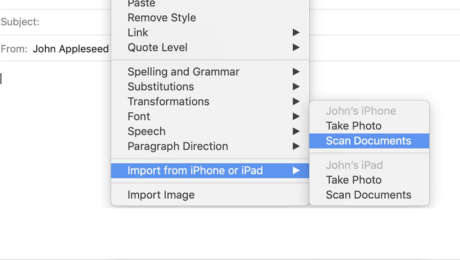
Besides Notes, the iPhone’s scanner can be accessed from a number of different Mac apps, including the Finder, Mail, Messages, and Pages 7.2 and later. To use it, control-click (or right-click) in the window you want to scan the document into, select “Import from iPhone or iPad,” and then click “Scan Documents.” The camera app will magically open on the linked mobile device, where a scan can be taken as usual — no wires required. Once done, the scanned document will end up in the Mac app with a minimum of hassle. I found it useful to scan a bunch of legal documents directly into a new folder in Finder, for example.
Love this one Link in bio for more #laptophacks #learnontiktok #tutorials #lifehacks #mac #macbook
According to a support page for the feature, the Mac will need to be running macOS Mojave or above, and the iPhone or iPad needs to be running iOS 12 and above. Both devices need to have Wi-Fi and Bluetooth turned on, and signed into iCloud with the same Apple ID with two-factor authentication enabled.
As well as scanning documents, the feature can also be used to take photos. Simply select “Take Photo” rather than “Scan Documents” from the menu and tap the shutter button on your mobile device to capture an image.
Camera Continuity isn’t a new feature, but its compatibility with the iPhone’s document scanner was news to me.
Subscribe to get the best Verge-approved tech deals of the week.
Please confirm your subscription to Verge Deals via the verification email we just sent you.
Oops. Something went wrong. Please enter a valid email and try again.